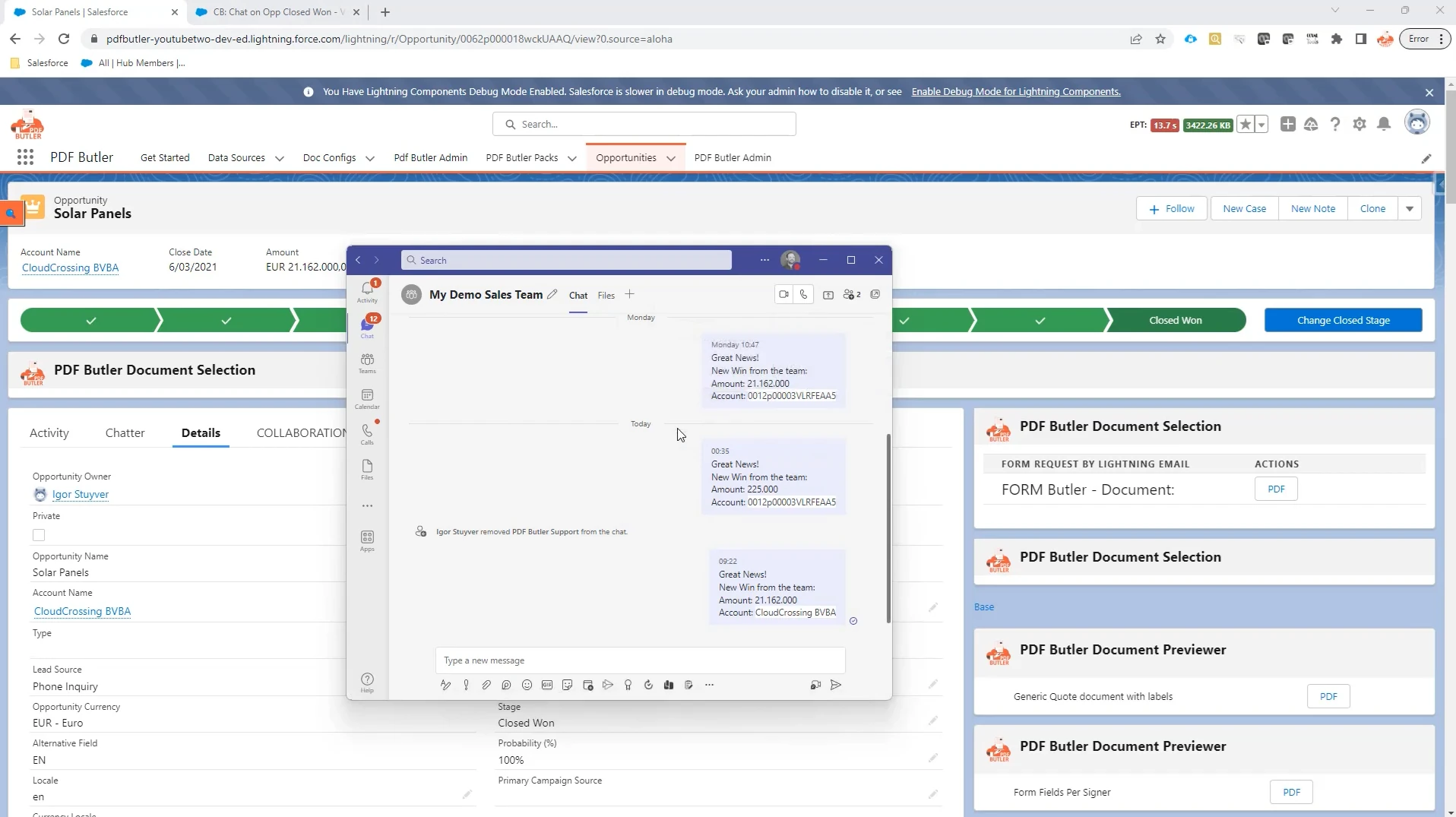
COLLABORATION Butler can send Microsoft Teams chat messages directly from Salesforce based on Flow activity. In this example, a message is sent to a Teams group when an Opportunity moves to Closed Won.
Step 01: Prepare the Microsoft Teams Chat and Salesforce Flow #
- Create or identify the Microsoft Teams group chat that should receive the message.
- In Salesforce, create or open a record-triggered Flow for the Opportunity object.
- Configure the Flow to run when the desired trigger condition is met, such as when an Opportunity reaches a specific stage.
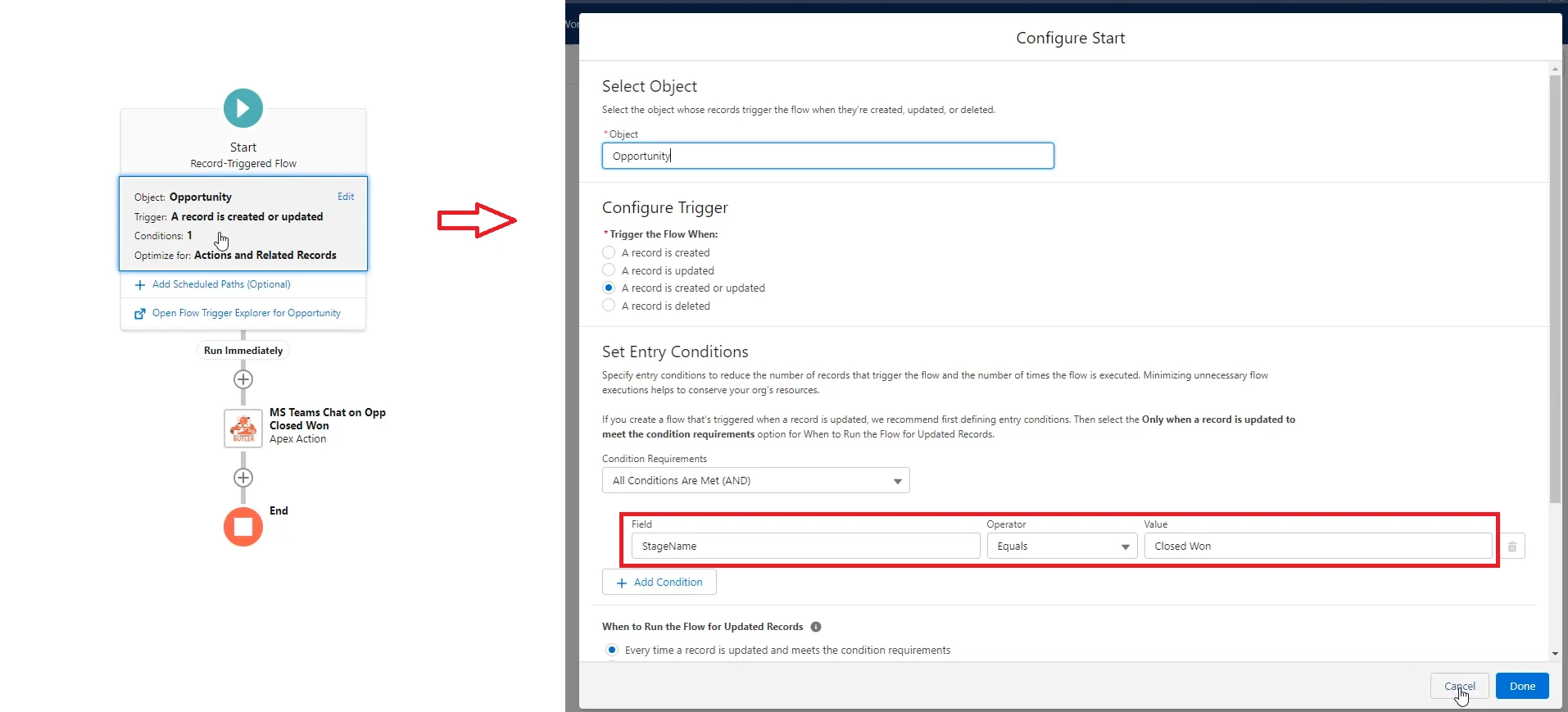
In this example, the Flow is triggered when Stage Name = Closed Won.
Step 02: Add the COLLABORATION Butler Action and Configure the Teams Message #
- In the Flow, click Add Element, then select Action.
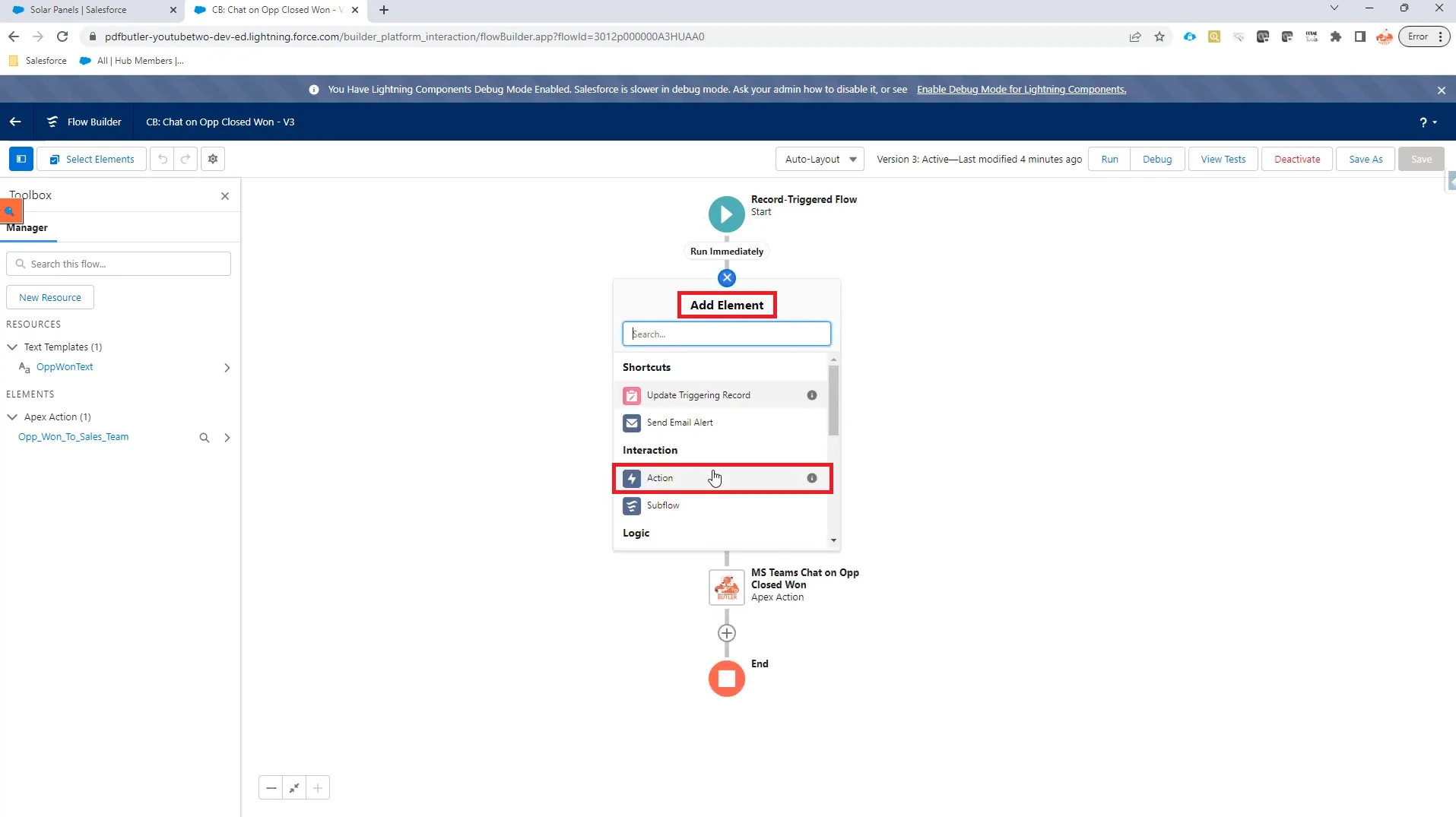
- Select COLLABORATION Butler – MS Teams Chat Message.
- Enter a Label for the action.
- In the HTML Message field, select the Flow text template that contains the message you want to send. You’ll configure the text template in the next step.
- In the chat name field, enter the exact name of the Microsoft Teams chat that should receive the message.
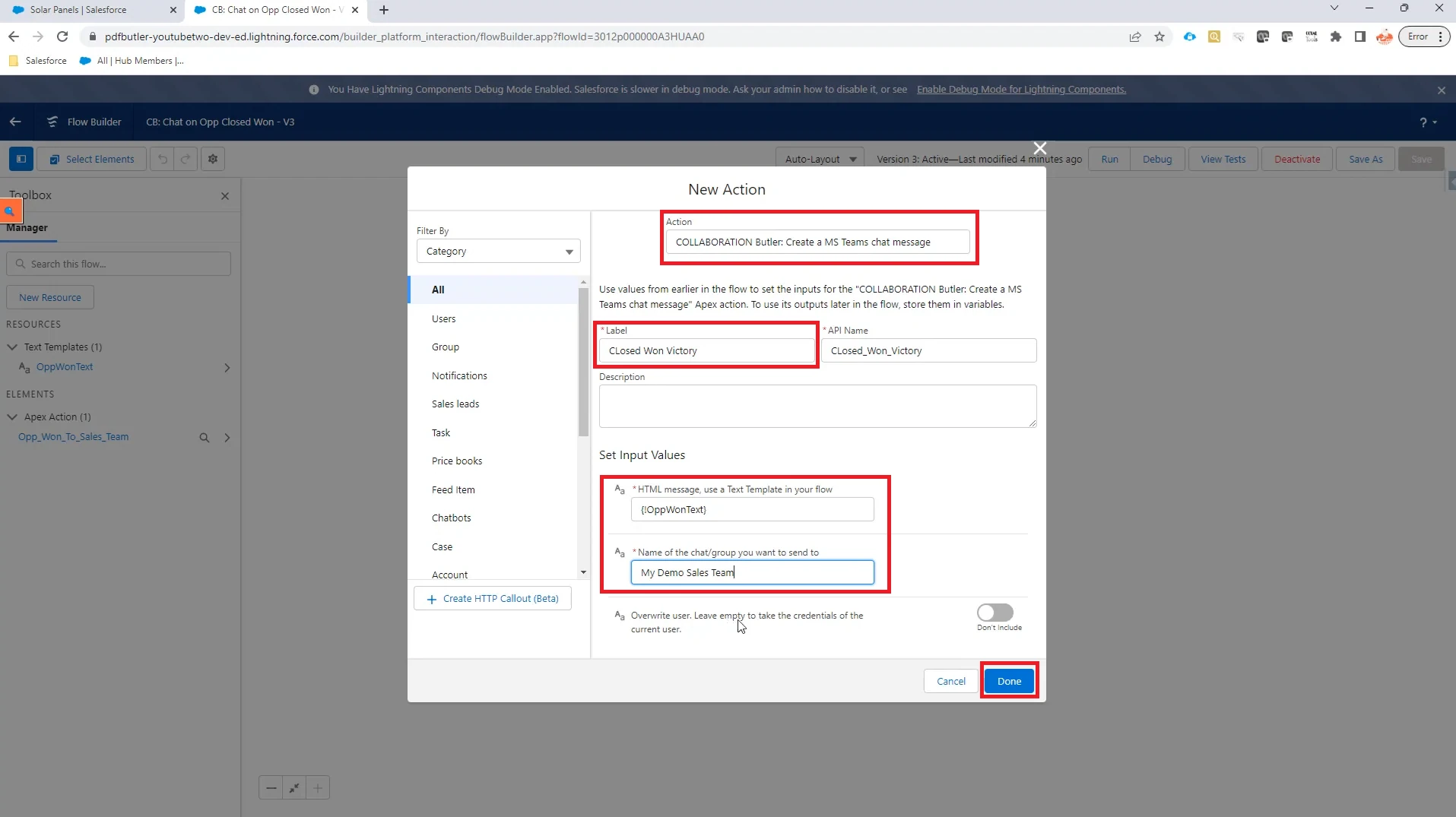
Note: By default, the Teams message is sent using the Salesforce user who triggers the Flow. Use Override User if the message should always be sent using a different user, such as a designated administrator or service account.
Step 03: Configure the Flow Text Template #
- Open the Flow text template used by the action.
- Enter the message you want to send to Microsoft Teams. Add Salesforce record variables as needed to include Opportunity data in the message. Then click Done.
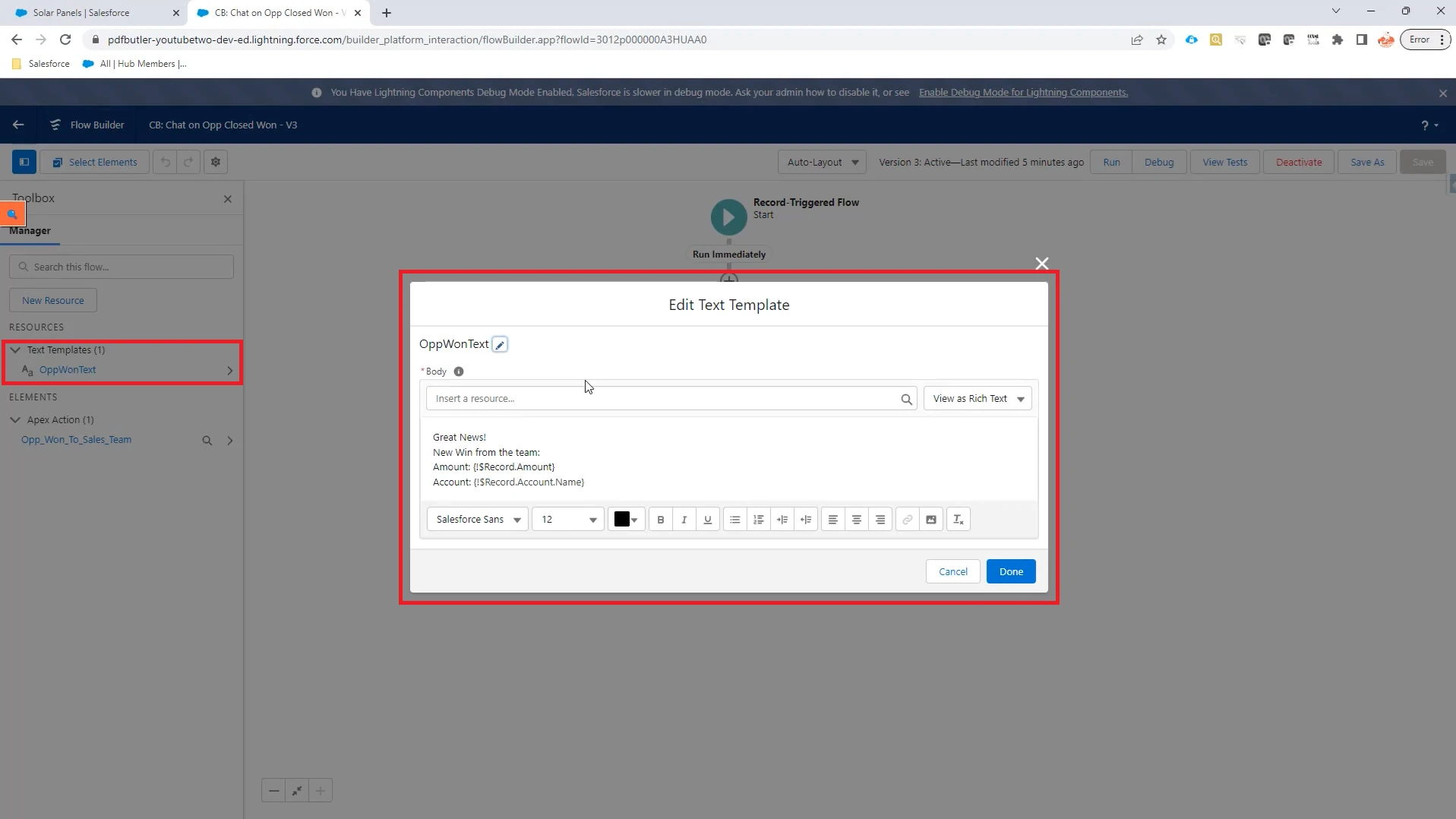
In this example, the message includes the related account name and Opportunity amount.
Step 04: Save and Activate the Flow #
- Click Save As in the upper-right corner. Update the Flow name if needed, then click Save.
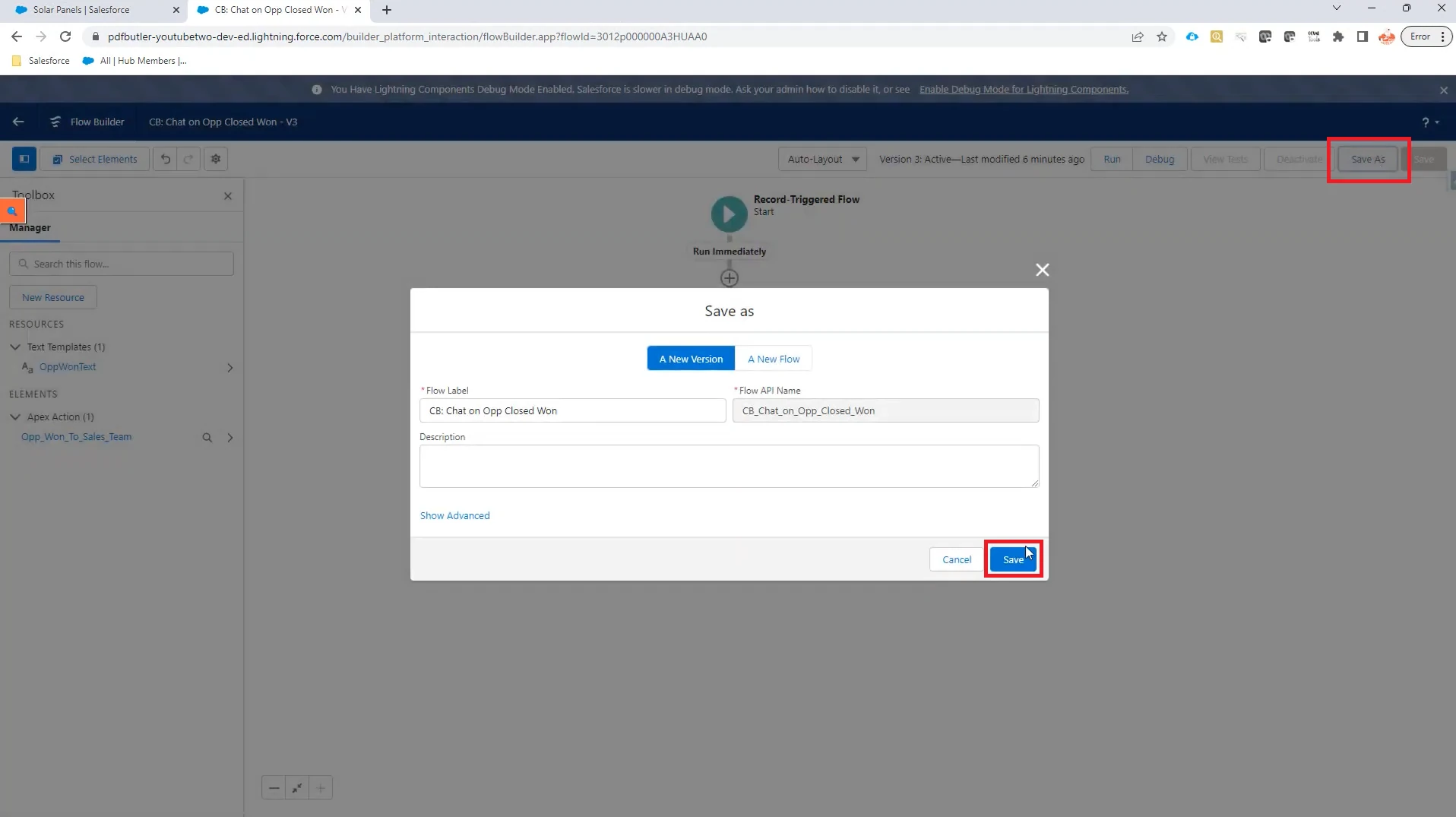
- Once the Flow is saved, the Activate button will appear in the upper-right corner. Click Activate. The Flow is now ready to send a Microsoft Teams chat message when the configured trigger conditions are met.
Step 05: Test the Teams Chat Message #
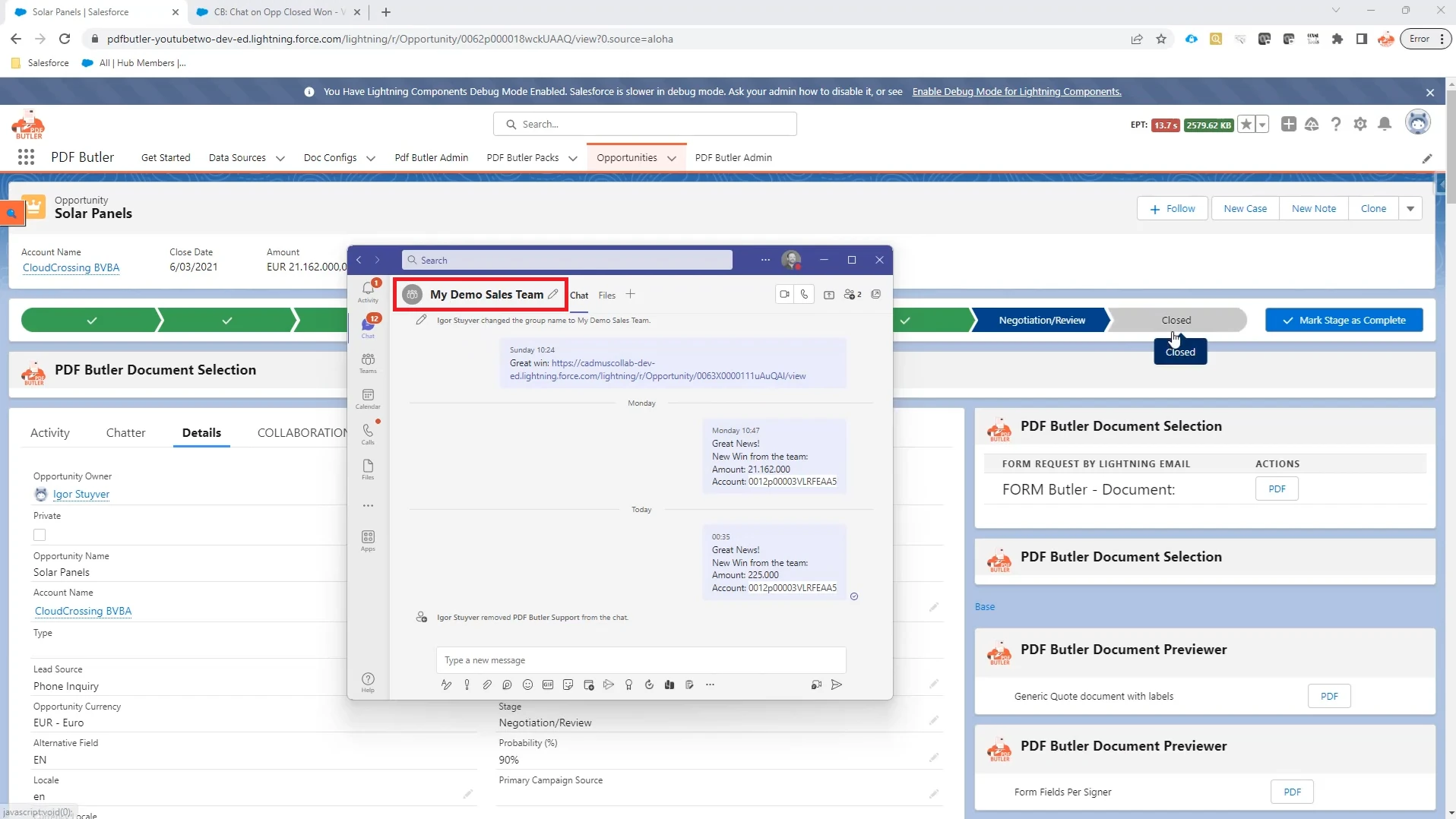
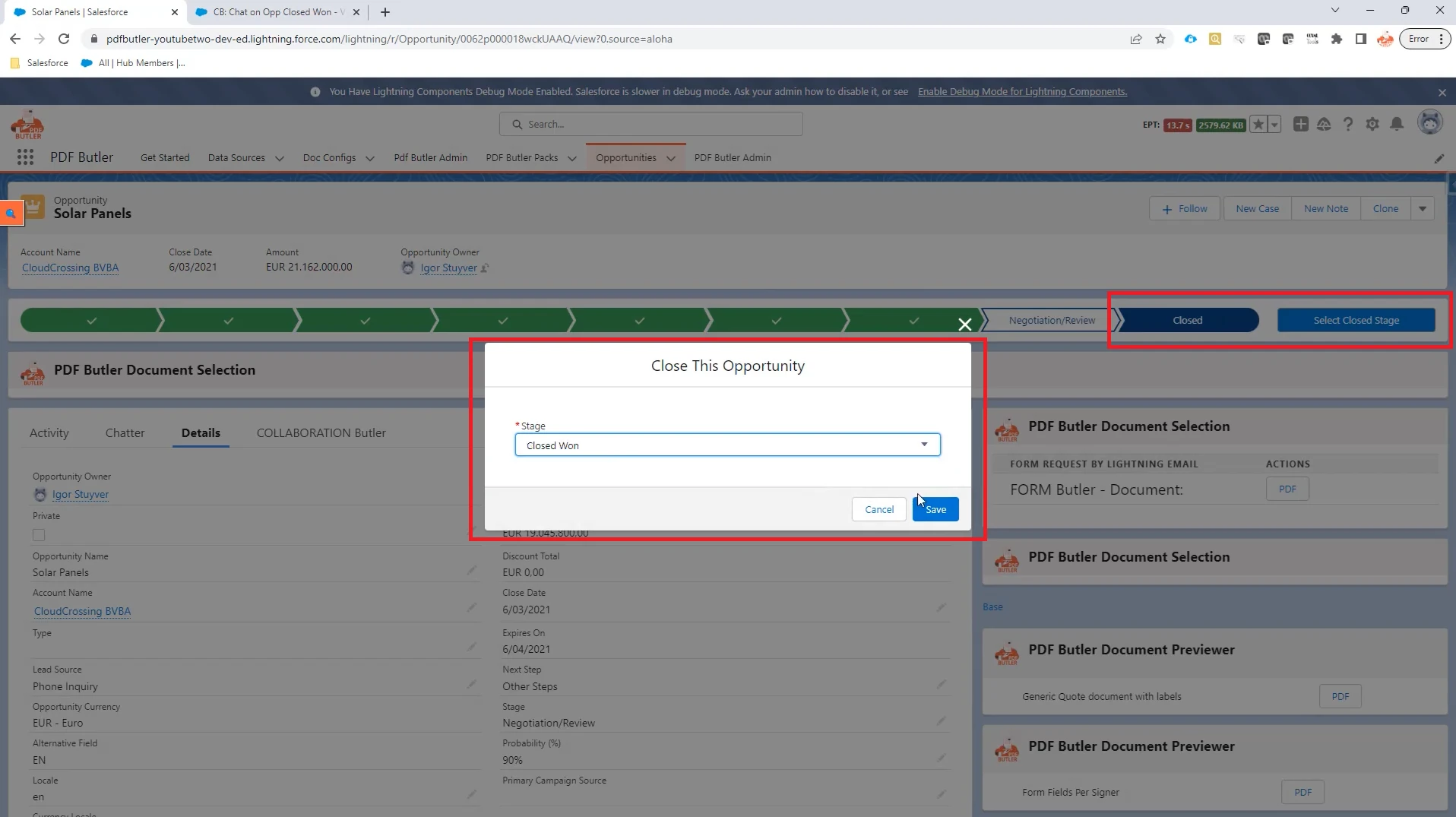
- Open an Opportunity record. Select the closed stage, then click Select Closed Stage on the right.
- Change the Opportunity Stage to Closed Won, then click Save.
- Open the configured Microsoft Teams chat and verify that the message appears. Confirm that any Salesforce values included in the text template are populated correctly.