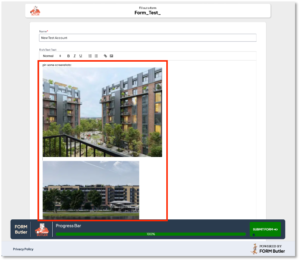
Web forms provide a Rich Text area element that enables selection of only one option. Rich Text area element is similar to the Text area element; the only difference is that a Rich Text area element allows you to add more complex text with styles, links, and the ability to add images and screenshots to the appropriate Rich Text area field in a Salesforce record.
Rich Text area element is created based on an API Driven Rich Text Editor: “Quill”.
Below are the settings you see after adding the Rich Text area element to the web form. 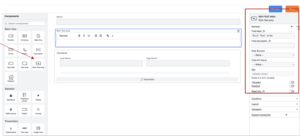
General
- Field label: Label of the Rich Text area form element you wish to capture through web form.
- Field Description: A description of the Rich Text area form element, typically providing details on the kind of data it captures.
- Data Sources: Create Data Sources to extract data from Salesforce. These Data Source will appear here. Let’s say you want to display Contact (with all the information like First Name, Last Name, Rich Text area, and so on). You need to fetch that data by creating a SOQL Data Source on the Contact object and supply the data to the form using this Data Source.
- Field API Name: Select the Data Source field (Source field in the above example) to map your Rich Text area form element here.
- Key: Each form element you add to your web form has a unique, automatically generated value. That is visible here.
- Transient: If enabled, the field will not be saved in Salesforce after the Web Form is submitted.
- Disabled: If enabled, then you cannot edit the field, and data will not be submitted. Takes precedence over read-only.
- Read Only: If enabled, then you cannot edit the field, and data will still be submitted.
Note!
- Rich Text area element can be used only with the appropriate Field type in Salesforce.
- Rich Text area element can be used only on the main form, not in Dynamic list (related records).
- Rich Text area element can be used both in unattached and in attached Form Requests.
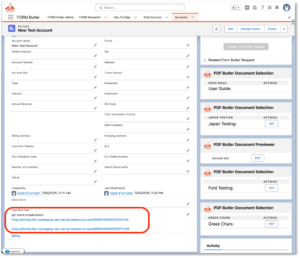
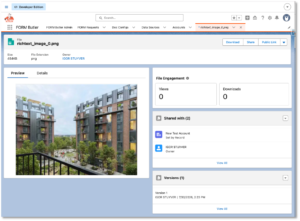
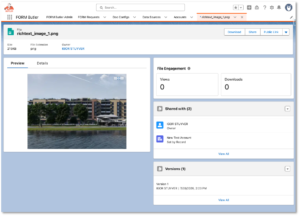
- Images and screenshots that the user added in this component will be saved to the record’s Notes & Attachments in Salesforce, and directly in the Rich Text area field will be shown as a link to this image/screenshot: