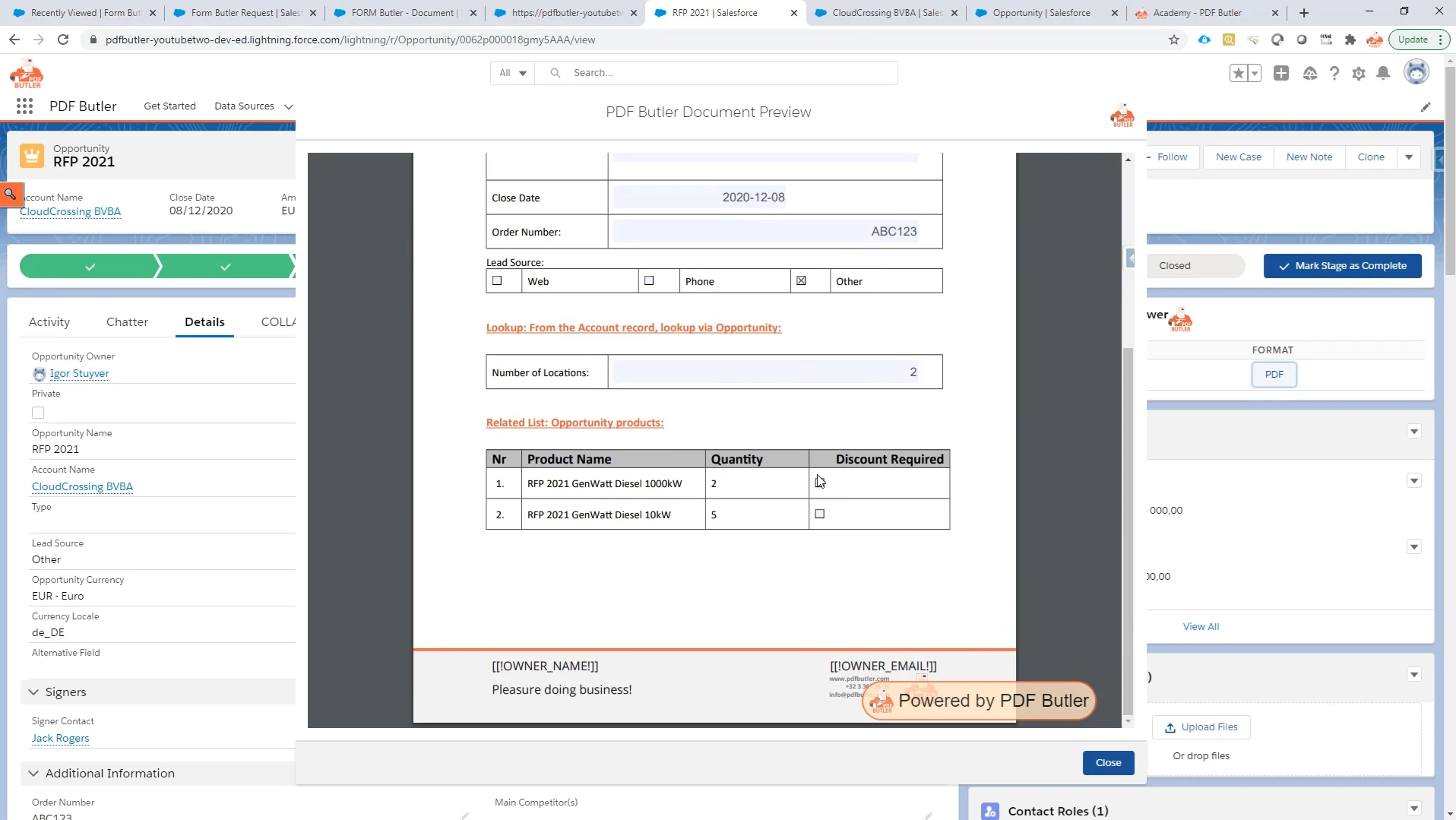
FORM Butler can populate and update data from Salesforce related lists within a document. A related list contains multiple records associated with a parent record, such as the products associated with an Opportunity.
In this example, Opportunity Products are displayed as individual rows in a table. The product name and quantity are populated from Salesforce, while an editable checkbox allows the discount value for each product to be updated.
Step 01: Prepare the Word Document #
- Open the Word document you want to use with FORM Butler.
- Add a table for the related-list records if it is not already present in the document.
- Add the merge fields needed for each record to the appropriate cells in the table row.
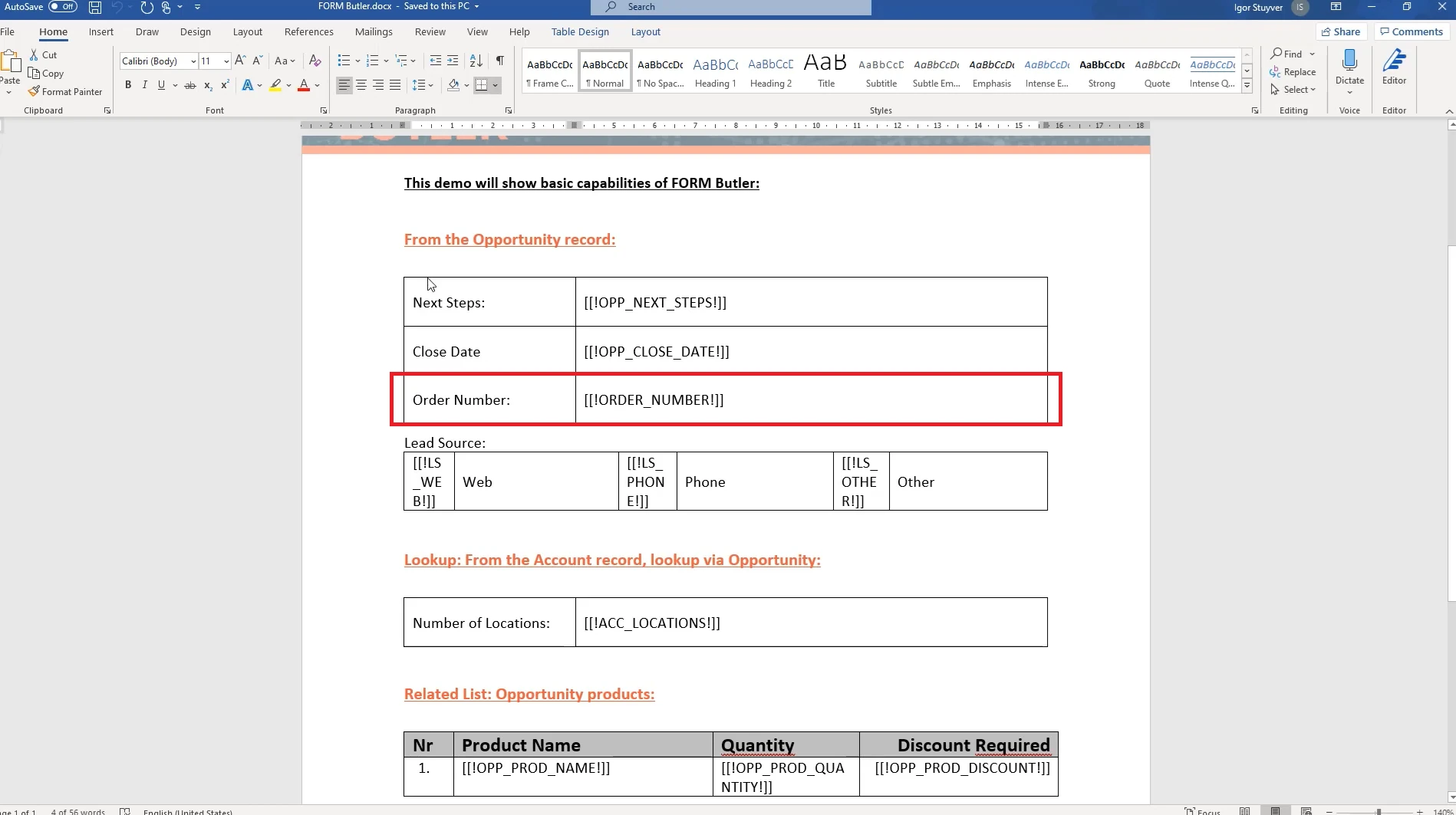
In this example, the table includes merge fields for the product name, quantity, and whether the product has a discount.
Note: If your FORM Butler Doc Config, document upload, and required DataSources are not already set up, complete the FORM Butler Document and DataSource Setup guide before continuing.
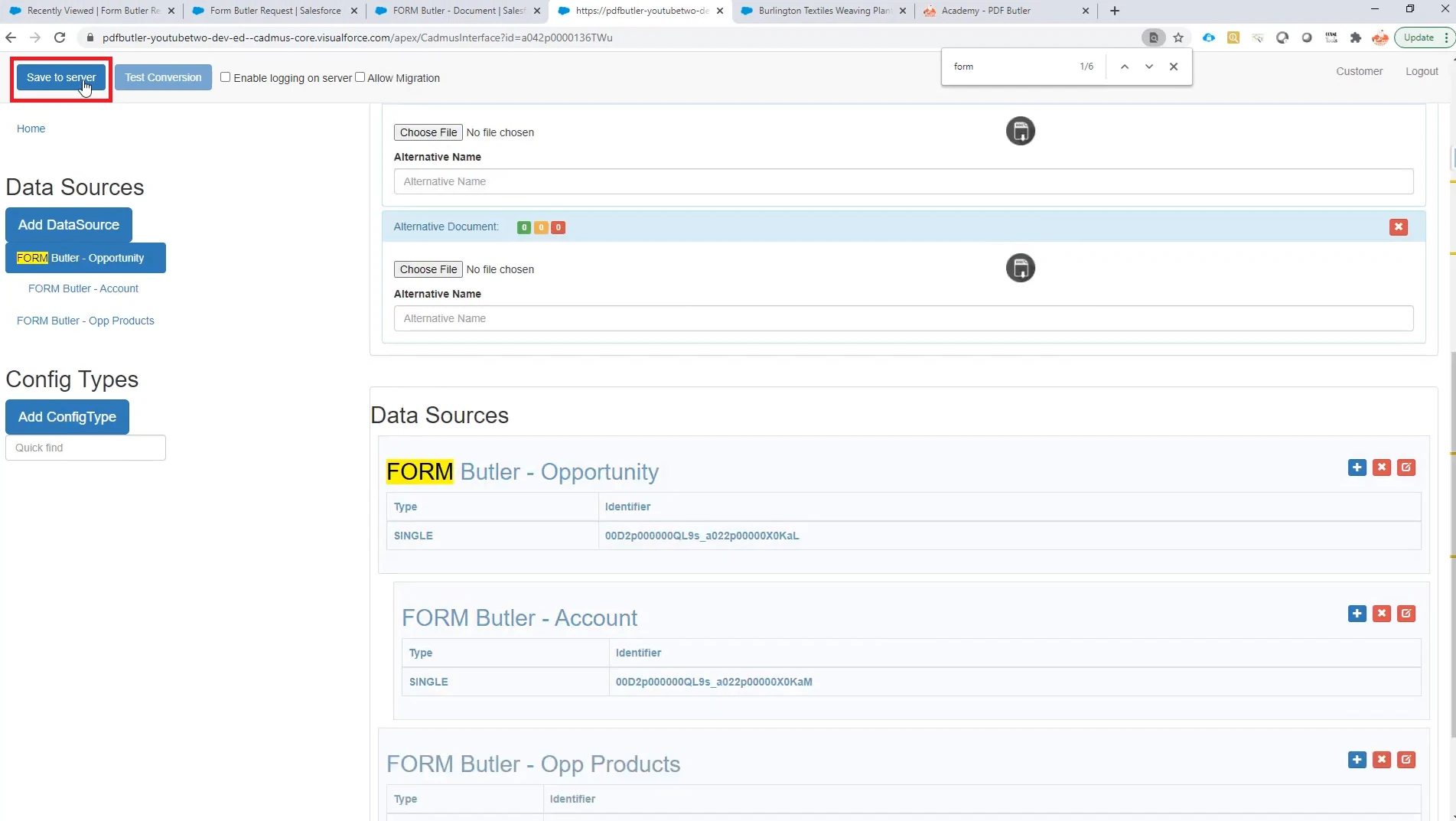
If the configuration already exists, review the current DataSources and add any additional DataSource required for the field you are configuring. After adding a new DataSource, click Save to Server before continuing.
Step 02: Configure the Related-List Table Row #
Once the required DataSources are added, you can configure the table row that will repeat for each related-list record.
- On the left-hand side, click Add Config Type.
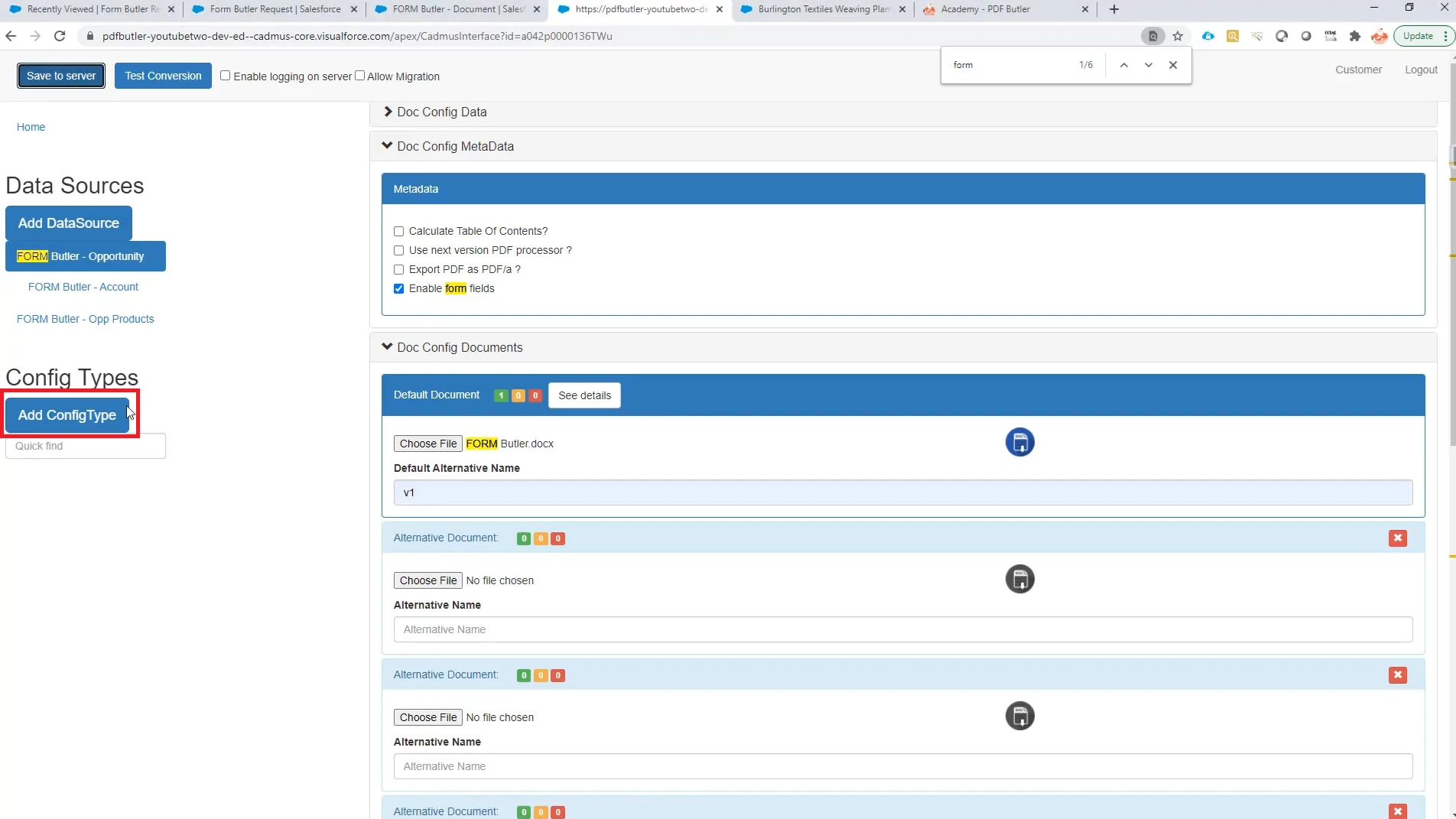
- In Name, enter the name of the merge field used to identify the repeating table row. Then select Table Row as the configuration type.
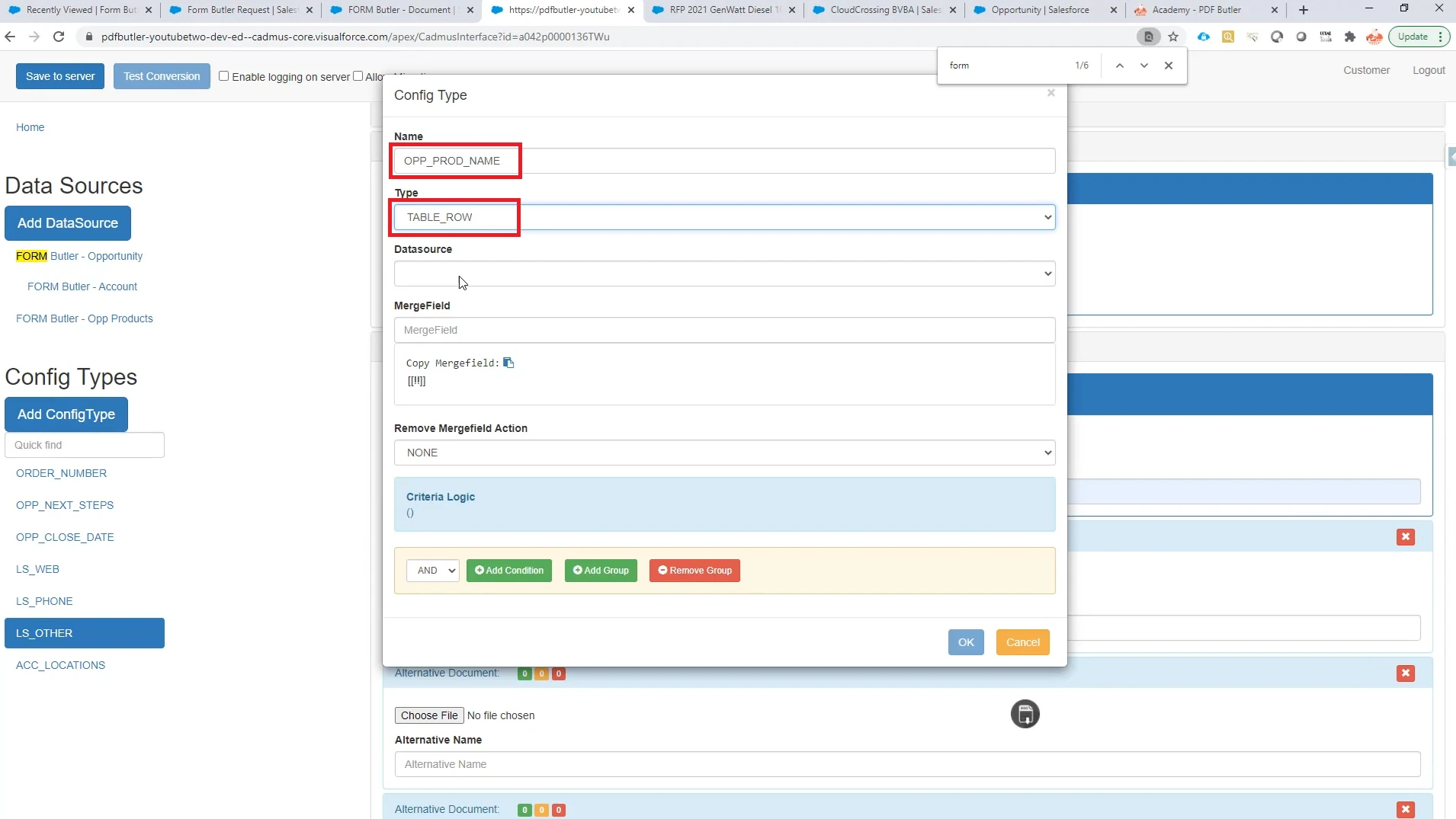
- In Datasource, select the related-list DataSource that contains the records you want to display.
- In MergeField, enter the corresponding merge field from the Word document. Click OK.
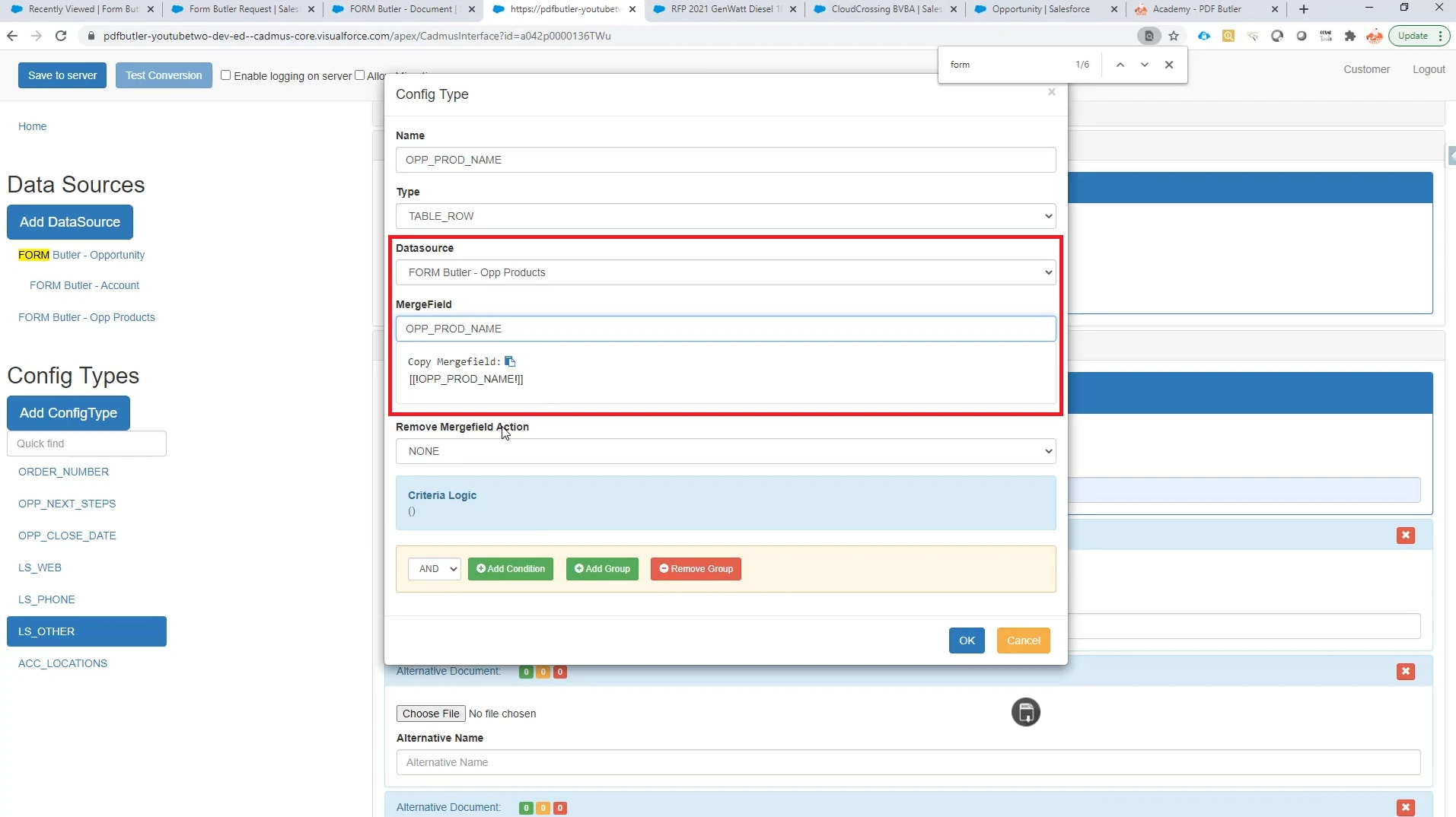
In this example, Opportunity Products is selected as the DataSource, and OPP_PROD_NAME is used as the MergeField for the repeating row.
Step 03: Configure the Standard Fields for Each Row #
- Click the blue + icon next to the parent config type to add a field within the related-list row.
- Select the relevant merge field name and leave the configuration type set to Single. Use Single when the value should be populated from Salesforce without being editable in the generated form.
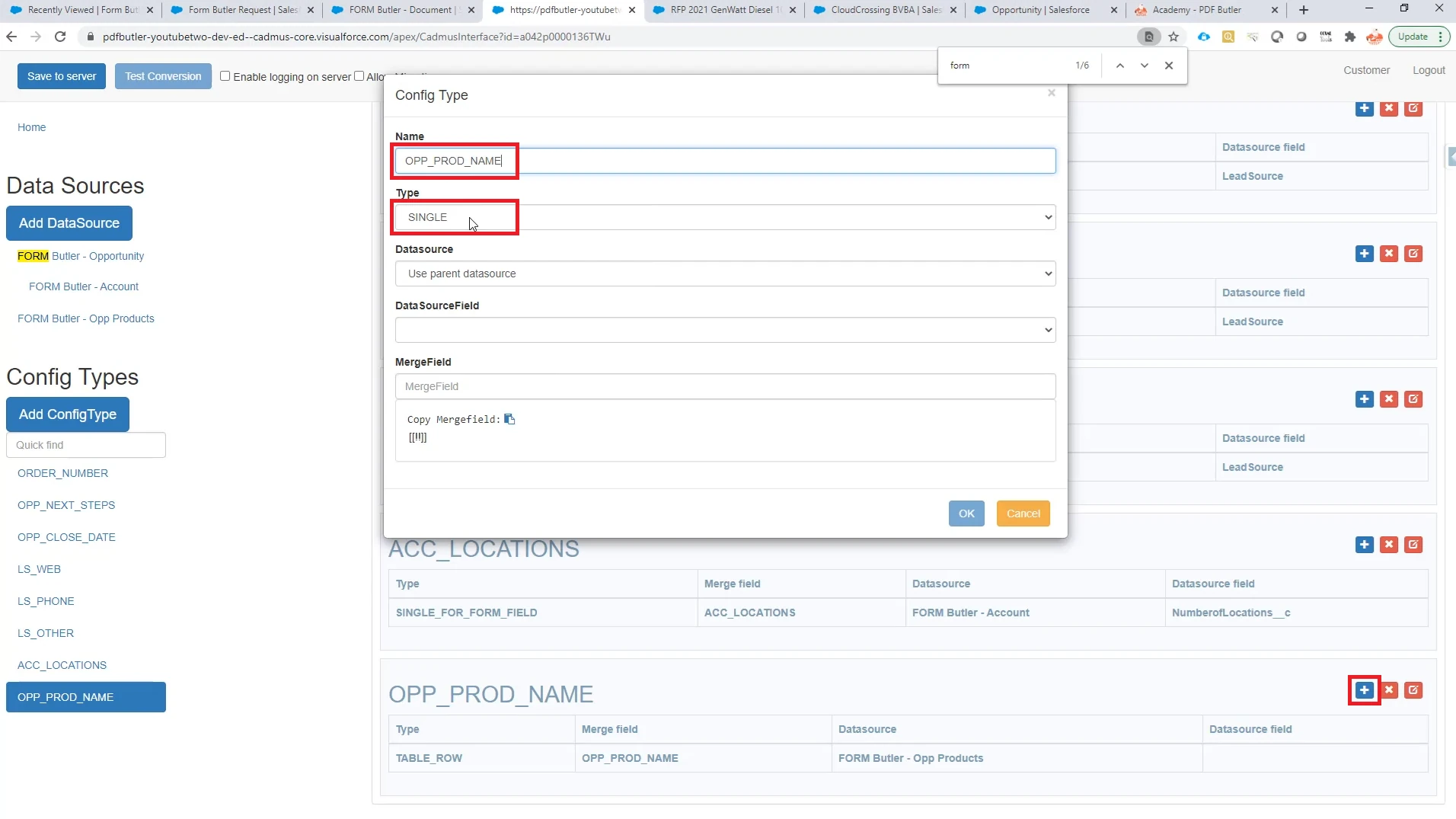
- In Datasource, leave Use parent datasource selected so the field uses the related-list DataSource configured for the table row.
- In DataSourceField, select the Salesforce field that should populate the value. If formatting options are available for the selected DataSourceField, apply any formatting needed for the value.
- In MergeField, enter the corresponding merge field from the Word document. Then click OK.
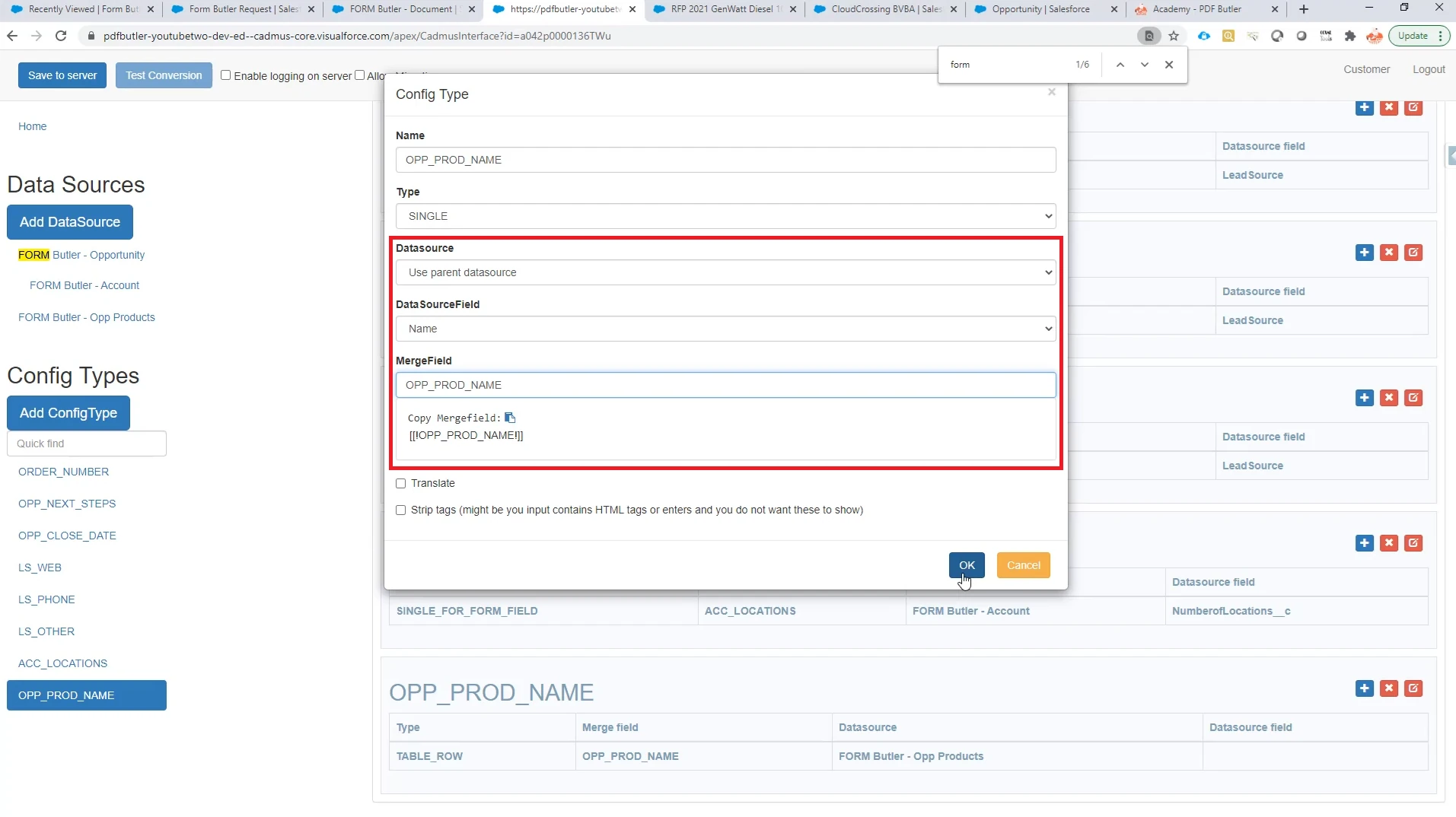
In this example, Product Name and Quantity are configured as standard Single fields.
- Repeat these steps for each standard value that should be populated in the related-list row.
Note: FORM Butler can use standard Single config types and Single for Form Fields config types within the same related-list row. This allows values to be populated from Salesforce while also including editable form fields in the same row.
Supported editable form-field types include TEXT, TEXTAREA, DATE, NUMERIC, and CHECKBOX. See the relevant form-field guide for configuration instructions.
Step 04: Save and Test the Related List #
- Click Save to Server and confirm that the configuration validates successfully.
- Generate the document to verify that each related-list record appears in its own table row.
- Confirm that the standard values are populated and that any editable form fields appear correctly. If needed, adjust the table formatting in the Word document so the fields are aligned and sized appropriately.