
Webform Password Protection allows you to restrict access to a Form Butler Webform by requiring users to enter a password before the form is displayed.
You can configure the password in three different ways:
- Use a password stored in a linked Salesforce record.
- Configure a shared password directly in the Webform Editor.
- Set a password for an individual Form Butler Request.
PDF Butler automatically determines which password to use based on a predefined priority order.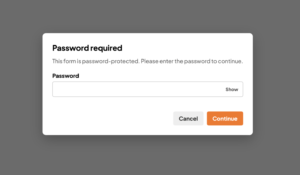
Password Priority #
If multiple password sources are configured, the form uses the first available, non-empty password according to the following priority:
| Priority | Password Source | When It Is Used |
|---|---|---|
| 1 | Linked Salesforce Record | A password is retrieved from the selected Data Source and Salesforce field. |
| 2 | Manual Password (Editor) | Set Password Manually is enabled and a value has been entered in Webform Password. |
| 3 | Form Butler Request Password | The Webform Password field on the Form Butler Request contains a value. |
Important: Users only need to enter one password. PDF Butler automatically selects the appropriate password source.
If none of the configured password sources contains a value, the webform opens without prompting for a password.
Option 1: Use a Password from a Salesforce Record #
This option is recommended when each recipient should have a unique password stored in Salesforce.
For example, each Contact or Customer record may contain its own Webform Password.
Note: This option is only available for attached forms.
Configuration #
- Ensure the Salesforce field that will store the password contains a value.
- Open the Webform in the Editor.
- Select the form to display its settings.
- Expand Webform Protection.
- Under Data Source, select the Data Source containing the linked Salesforce record.
- Under Field API Name, select the field that stores the password.
- Save the form configuration.
The password data source selector supports SOQL data sources of type Single sObject. If the required data source or field is unavailable, ask your Salesforce administrator to check its configuration.
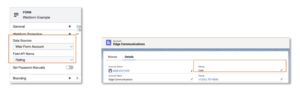
Priority Note: When a non-empty password is available from the linked Salesforce record, it always overrides the other password configuration methods.
Option 2: Configure a Manual Password #
Use this option when all users accessing the same webform should use a shared password.
Configuration #
- Open the Webform in the Editor.
- Select the form.
- Expand Webform Protection.
- Enable Set Password Manually.
- Enter the desired password in Webform Password.
- Save the form configuration.
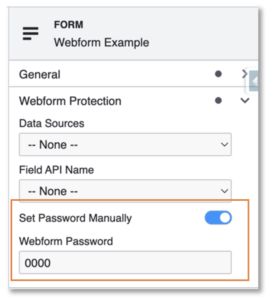
Share this password with the intended recipients so they can access the form.
Priority Note: If a password is available from the linked Salesforce record, that password takes precedence over the manually configured password.
Option 3: Configure a Password on a Form Butler Request #
This option allows you to define a password for an individual Form Butler Request.
It is useful when a single request requires a different password than the rest of the forms generated from the same configuration.
Configuration #
- Open the desired Form Butler Request record in Salesforce.
- Edit the Webform Password field.
- Enter the password.
- Save the record.
- Share both the webform link and the password with the recipient.
Note: If the Webform Password field is not visible, ask your Salesforce administrator to check the page layout and your field access.
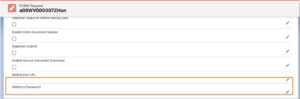
The request password is used only when neither the linked Salesforce record nor the manually configured password provides a value.
How Password Protection Works #
Before successful password verification, the form-loading response contains only an indication that a password is required. The form structure, configuration, and request data are returned after the correct password is supplied.
Browser network requests remain visible in developer tools. Password protection restricts the form data returned before verification; it does not hide network activity.
Changing or Removing a Password #
To change a password, update the source that currently takes priority:
- For a linked-record password, update the selected Salesforce field.
- For a manual password, update Webform Password in the Editor and save.
- For a request password, update Webform Password on the Form Butler Request.
To remove password protection completely, remove the linked-field selection, disable Set Password Manually, and clear the request password wherever those settings are configured.
Clearing only the highest-priority password may cause the form to use another configured password.
After making changes, open the form link in a new private browser window to check the recipient experience.


