The user’s view
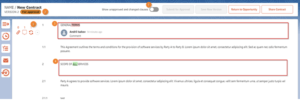
Once the user clicks on the “Submit for Approval” button “Clear view” (1) toggle becomes inactive, status becomes “In Approval” (2). The counter above the changes icon (5) displays the count of changes. Additions and removals are highlighted in red (3) or green (4).
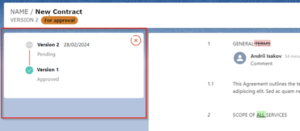
In the side panel, the user can view the approval history.
The manager’s view
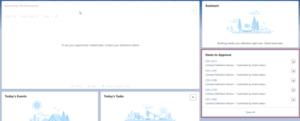
The manager can view pending changes awaiting approval on the Home page. Clicking on “Items to Approve” redirects the user to the corresponding record.
In the Approval Details section, clicking on Contract Name opens the Contract Instance with the changes.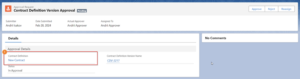
The manager can review additions and removals highlighted in red or green. Additionally, the manager can add comments (3) to the modified sections/clauses.
Finally, the manager can choose to approve or reject the changes by clicking the “Approve” (1) or “Reject” (2) button.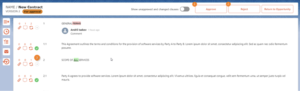
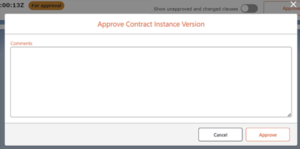
The approver can leave a general approval comment.