
Contract Butler – Template Migration #
The Template Migration feature allows administrators to export and import Agreement Templates between Salesforce organizations. This is useful when moving templates between development, testing, and production environments or when creating backups.
The migration page contains two main sections:
- Export – Download Agreement Templates from your Salesforce organization.
- Import – Upload and import Agreement Templates into another Salesforce organization.
Export Agreement Templates #
The Export tab displays all Agreement Templates available for migration.
From this page, you can review existing templates and choose which ones to export.
Export Page Overview #
The Export page provides the following features:
- Check agreements/templates by selecting the checkboxes in the Action This marks them for export.
- Press on a template name to open and review the template details.
- Press on the owner’s name to view that person’s profile or related information.
- Use the search field at the top to filter templates by name.
- Press the refresh button to reload the template list with the latest data.
- Click the Export button to export all selected templates in bulk.
The table also displays the Created Date for each template, making it easier to identify the appropriate version to export.
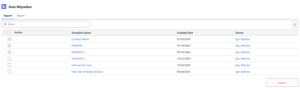
All exported agreements are saved to a zip file named Agreements.zip.
Each agreement is saved as a JSON file:

Import Agreement Templates #
The Import tab allows you to upload previously exported Agreement Templates into your Salesforce organization.
Import Page Overview #
The Import page provides several options for uploading and managing migration files.
You can:
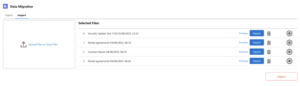
- Upload new files by clicking Upload Files or Drop Files on the left side, or drag and drop files directly into this area.
- See the list of selected files on the right side, each with its name, date, and time.
- Preview a file by clicking Preview before importing.
- Import a single file immediately by pressing the blue Import button next to it.
- Delete a file from the list by pressing the trash icon.
- Select a primary file using the circular selector at the right end of each row.
- Import all files at once by clicking the red Import button at the bottom-right corner.
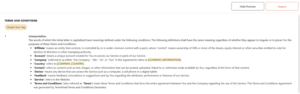
On the previewer page, you can check the document, hide the preview by pressing Hide Preview to return to the file list, and import the file directly by clicking the red Import button without going back to the main list.
After import, if successful, the agreement will be marked with a check mark:

If there are structural issues while adding files for import, an error will be displayed:



