
Contract Butler includes version control and an approval workflow to help manage changes throughout the contract lifecycle. Depending on the contract’s current status, users can save their work as a draft, create a new version, or submit the contract for approval.
Saving Changes to a Draft Contract #
When a Contract Instance is in Draft status, you can save your progress without creating a new version.
To save changes:
- Open the Contract Instance.
- Make the necessary updates to the contract sections or clauses.
- Verify that the contract status is Draft.
- Click Save as Draft.
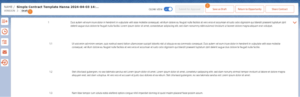
The changes are saved to the current draft version, allowing you to continue editing later without affecting version history.
Creating a New Contract Version #
Once a Contract Instance is Active, any modifications should be saved as a new version to preserve the existing version history.
To create a new version:
- Open an Active Contract Instance.
- Make the required changes to one or more sections or clauses.
- Click Save New Version.
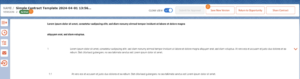
Contract Butler creates a new version of the contract while preserving previous versions for auditing and comparison.
Submitting a Contract for Approval #
When the contract is ready for review, you can submit it for approval.
To submit a contract:
- Open a Contract Instance with the status Draft.
- Review the contract to ensure all required changes have been completed.
- Click Submit for Approval.
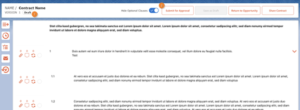
The contract is sent into the configured approval process.
Approval Routing #
By default, the approval request is sent to the Manager associated with the current Salesforce user.
To verify or update the approver:
- Click your User Avatar in Salesforce.
- Open your User record.
- Review the Manager field.
- If necessary, populate or update the Manager with the appropriate approver.
- Save your changes.
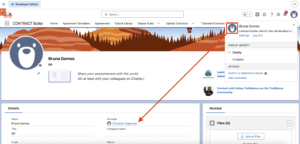
When the Manager field is configured, the designated manager will receive the approval request on their Salesforce Home page (or through the organization’s configured approval notifications).


