
Contract Butler – Creating and Managing Agreement Templates #
Agreement Templates allow you to create standardized contract structures that can be reused across your organization. Using the Template Builder, you can build, customize, and maintain templates directly within Salesforce without leaving the application.
Templates can contain sections, clauses, formatting, and engagement settings, making it easy to generate consistent contracts for different business scenarios.
Creating a New Agreement Template #
- Open the Contract Butler app.
- Navigate to the Agreement Templates tab.
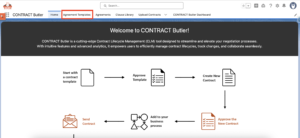
- Click New.
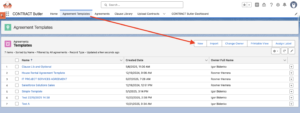
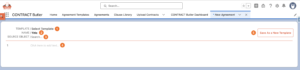
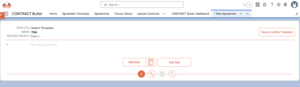
The Template Builder is where you create and organize the structure of your agreement.
The builder includes:
1- Template Selector – Open an existing template.
2- Template Name – Edit the template name.
3- SOURCE OBJECT (Optional)
4- Contract Structure – Add, organize, and edit sections and clauses.
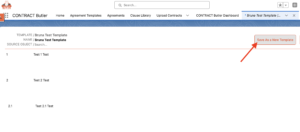
5- Save as New Template button
Add New Section/Clause #
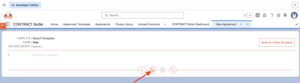
To add content to your template click the + (Add) button.
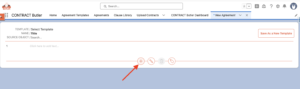
Two options will appear:
- Add Next: Creates a new section or clause immediately after the currently selected item.
Use this option when adding content at the same hierarchy level.
Example:1. Introduction2. Definitions3. Payment Terms - Add Sub: Creates a subsection or subclause beneath the currently selected section or clause.
Example:2. Definitions,2.1 Customer,2.2 Supplier,2.3 Services
You can also insert predefined clauses directly from the Clause Library.
Adding Clauses from the Clause Library #
In the Agreement / Agreement Template editor:
- Click the + (Add) button.
- Add Next: Creates a new empty section or clause immediately after the currently selected item. You can also add clauses from the Clause Library modal by clicking the library icon.

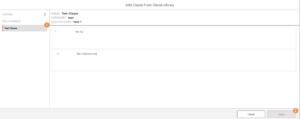
Add Clauses from the Clause Library modal:
- Select the target clause from the Clause Library list.
- Click Insert.
Edit current Section/Clause #
To modify an existing section or clause click the Edit (✏️) icon.
- Click the pencil (edit) button to modify the clause
- Add Clause Name and text.
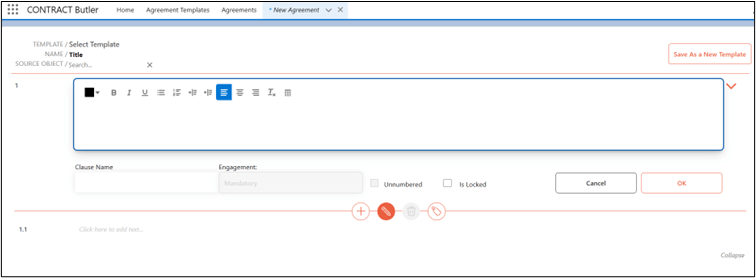
- Modify engagement options.
- Toggle checkboxes: Unnumbered or Is Locked (if locked, only you can edit the clause).
- Click OK to save the clause.
- Add additional clauses as needed.
Removing a Clause #
To remove a section or clause:
- Hover over the desired section.
- Click the Delete icon.
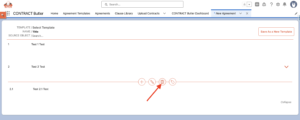
- Confirm the deletion.
Note: Deleted sections are permanently removed from the template.
Saving the Template #
Once you’ve finished building the template save it.
Managing Existing Agreement Templates #
Agreement Templates can be modified at any time.
Edit an Existing Template #
- Open the Agreement Templates tab.
- Select the template you want to modify.
- Click Edit.
- Update:
- Clause names
- Clause content
- Engagement settings
- Formatting
- Numbering
- Lock settings
- Click OK to save each modified clause.
- Click Update to save the template.
Selecting an Existing Template #
Instead of creating a new template from scratch, you can reuse an existing one.
- Open the Template Builder.
- Click Select Template.
- Choose a template from the list.

- The selected template will load into the builder.
- Make any necessary changes.
- Choose one of the following options:
- Save as New Template to create a copy.
- Update Existing Template to overwrite the current version.
Reusing templates helps maintain consistency across agreements while reducing setup time.


