Create your first document in just 15 minutes. Learn the basics of selecting data, replacing merge fields, and repeating rows. Use the template document as a starting point!
Download Template without mergefields
Download Template with mergefields
Generate Your First Quote with PDF Butler #
1. Prerequisite Verification #
Before starting, ensure all required setup steps are completed:
- Confirm that steps 1 to 5 from the initial setup are completed and marked as done.
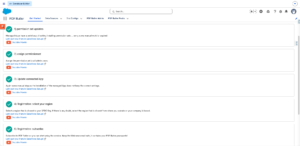
- Go to the PDF Butler Admin page.
- Verify that your registration and credentials are correctly configured and visible.
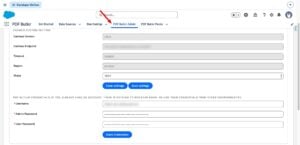
2. Create a Template Using MS Word #
- Go to the PDF Butler Academy and download a Word template.
- Open the document.
- Identify the data you want to pull from Salesforce.
-
Format each field as a merge field using the syntax:
[[!FIELDNAME!]]
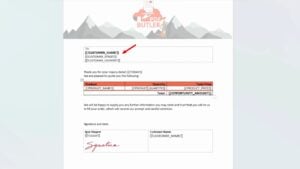
- Save the document.
3. Configure PDF Butler #
3.1 Create a Data Source #
- In Salesforce, navigate to the Data Sources tab.
- Click New.
- Select SOQL and click Next.
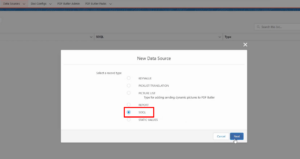
- Enter a Data Source Name.
- Select the Type (e.g., Single sObject).
- Click Save.
- At the top of the page, click SOQL Builder.
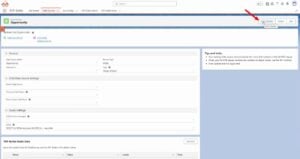
- Select an Object (e.g., Opportunity).
- Choose the fields you want (e.g., Opportunity ID, Amount, Owner Name, Email).
- Review selected fields in the Review tab.
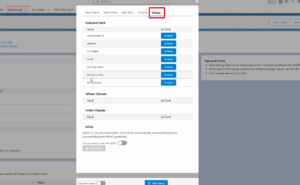
- Go to the Add Filter tab.
- Select a field and operator.
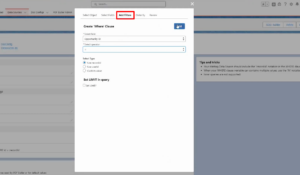
- Click Add Filter.
- Click Save Query.
3.2 Create a Doc Config #
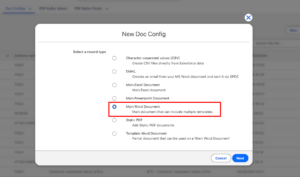
- Go to the Doc Config tab.
- Click New.
- For this example we will use Main Word Document.
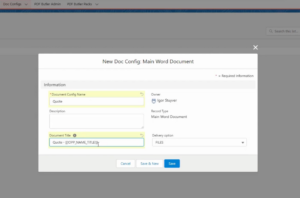
- Enter:
- Document Config Name
- Document Title
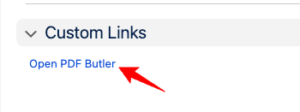
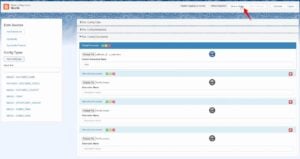
- Open the record and click Open PDF Butler.
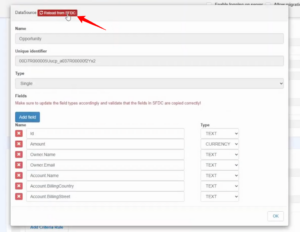
- Click Add Data Source and select the one you created.
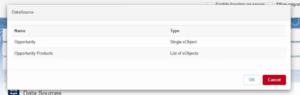
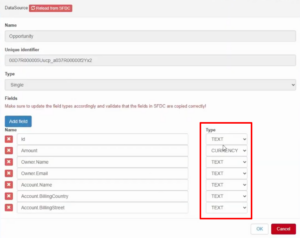
- Verify that field types are automatically recognized.
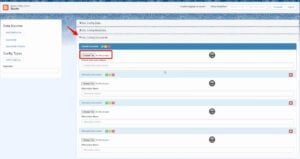
- In the Doc Config Documents section, upload your Word document.
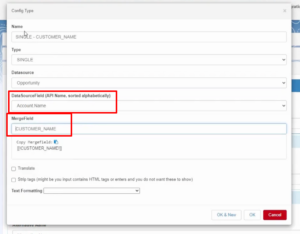
- Click Add Config Type.
- Select:
- Data Source
- Data Source Field
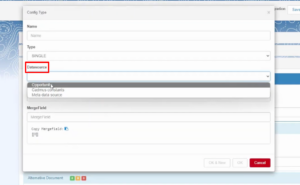
- In Merge Field, enter the corresponding field name from your Word template.
- Click Save to Server (top-right corner).
4. Generate the Document #
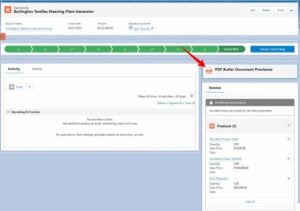
- Open a record from the object used in your configuration (e.g., Opportunity).
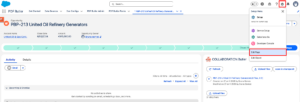
- Click the Setup (gear icon) → Edit Page.
- From the components list, select PDF Butler Previewer.
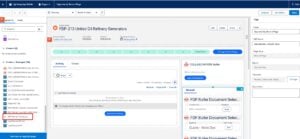
- Drag and drop it onto the page.
- Open the Doc Config record you created.
- Locate and copy the Customer DocConfig ID.
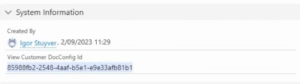
- Paste the ID into the DocConfig to Retrieve field in the component.
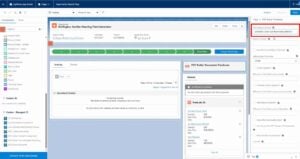
- Click Save, then Activate.
- Assign as:
- Org Default
- Select Desktop and Phone
- Return to the record page.
- You will now see the PDF Butler feature.
- Click the PDF button.
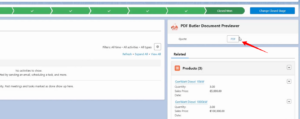
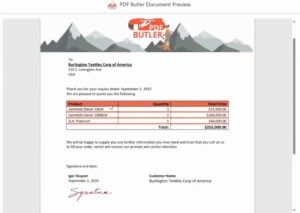
- A preview will be generated with all fields populated.
5. Edit Data from a Data Source #
To modify fields in your data source:
- Open the Data Source record.
- Click SOQL Builder.
- Add or remove fields as needed.
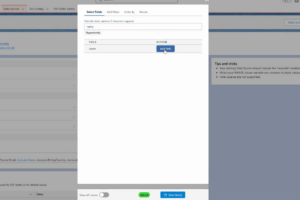
- Click Save Query.
- Go to the Doc Config page.
- Edit the Object Data Source.
- Click Reload from SFDC to refresh fields.