
The PDF Butler SOQL Builder makes it easy to create most Data Sources without writing any code. However, Salesforce Object Query Language (SOQL) supports many advanced features that are not available through the visual builder.
For scenarios that require more complex queries, PDF Butler allows you to switch from the SOQL Builder to a fully custom SOQL query while continuing to use the same Data Source.
This gives you complete control over the data returned from Salesforce.
#
When Should You Use a Custom SOQL Query? #
The SOQL Builder is recommended for most configurations, as it simplifies selecting objects, fields, and relationships.
However, a custom SOQL query is useful when you need advanced functionality, such as:
- Aggregate functions (SUM, COUNT, MAX, MIN, AVG)
- GROUP BY clauses
- HAVING clauses
- More advanced filtering logic
- Other SOQL features that are not supported by the visual builder
Most document configurations can be completed using the SOQL Builder, but advanced reporting or summarization scenarios may require a custom query.
Switching from the SOQL Builder #
If you have already created a Data Source using the SOQL Builder, you can easily convert it into a custom SOQL Data Source.
- Open your existing SOQL Data Source.
- Make sure SOQL Builder Managed checkbox is unchecked.
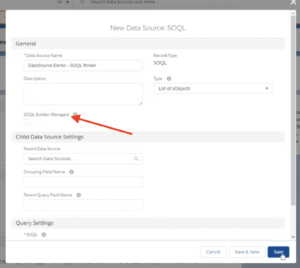
- The generated query becomes fully editable.
- Replace or modify the query with your own SOQL statement.
- Save the Data Source.
You can start with the query generated by the SOQL Builder and simply extend it with additional SOQL functionality.
Using Aggregate Functions #
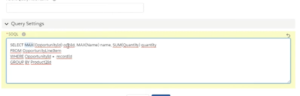
Custom SOQL allows you to use Salesforce aggregate functions, including:
SUM()COUNT()MIN()MAX()AVG()
These functions enable you to summarize Salesforce data before it reaches PDF Butler, reducing the amount of processing required during document generation.
Using Aliases #
When using aggregate functions, always assign an alias to the calculated field.
For example:
SUM(Quantity) TotalQuantity
The alias becomes the field name available inside PDF Butler.
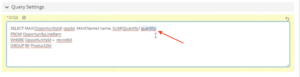
Without an alias, the calculated value cannot be referenced in your document configuration.
Supported SOQL Features #
Custom SOQL supports virtually all standard Salesforce SOQL functionality, including:
- Aggregate functions
- GROUP BY
- HAVING
- Advanced WHERE clauses
- Relationship queries
- Complex filtering logic
This gives administrators access to the full power of Salesforce SOQL whenever the visual builder is not sufficient.
Configuring the Data Source #
After saving the custom SOQL query:
- Add the Data Source to your Doc Config.
- If any calculated fields are not automatically available, manually create them in the Data Source configuration.
- Select the correct field type (Text, Number, Currency, etc.).
- Save the configuration.
The Data Source can then be used like any other PDF Butler Data Source.
Case Sensitivity #
Salesforce SOQL is case-sensitive for API names.
When writing a custom query:
- Use the correct object API names.
- Use the correct field API names.
- Pay attention to uppercase and lowercase characters.
An incorrectly capitalized API name may prevent the query from executing correctly.
The SOQL Builder automatically uses the correct API names, making it a useful starting point before switching to a custom query.


