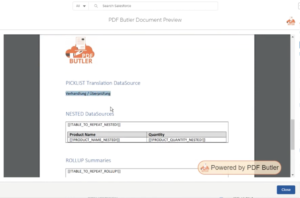
PDF Butler allows you to automatically use the translated value of a Salesforce picklist in your generated documents.
Instead of displaying the API or default picklist value, PDF Butler retrieves the translation configured in Salesforce Translation Workbench based on the language of the user or recipient.
This is especially useful when generating documents for customers in different languages without creating separate templates.
To understand the complete process, read this article or watch the accompanying video tutorial before configuring Picklist Translations. The video demonstrates each step visually and complements the instructions below.
Prerequisites #
Before configuring Picklist Translations, ensure that:
- Salesforce Translation Workbench is enabled.
- Translations have been created for the desired picklist values.
- The field you want to translate is a Salesforce Picklist.
Configure Salesforce Translation Workbench #
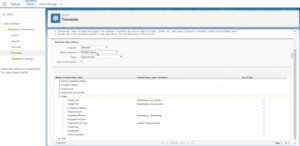
- Navigate to Setup.
- Look for Translation Workbench in the global search.
- Click the Translate option.
- Locate the object and picklist field you want to translate.
For this example object will be Opportunity and Field will be Stage. - Create translations for the languages you want to support.
Note:
PDF Butler uses the translations configured in Salesforce. If no translation exists for a value, the original picklist value is returned.
Setting Up a Picklist Translation #
Create a Picklist Translation Data Source #
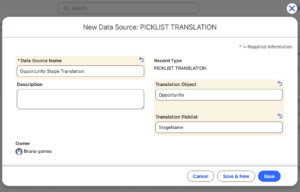
- Open PDF Butler and navigate to Data Sources.
- Create a new Data Source.
- Select the Data Source type: Picklist Translation
- Give it a descriptive name.
Example: Opportunity Stage Translation - Select the Salesforce object (it can be any object).
Example: Opportunity - Select the picklist field to translate (API Name).
Example: StageName - Save the Data Source.
Configure the Doc Config #
- Open your Doc Config.
- Load the Picklist Translation Data Source.
- We need a field so you can create a dummy.
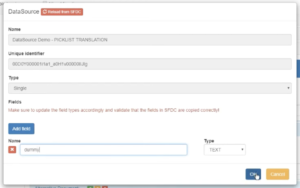
- Create a new Config Type for the translated value.
- Select the “Translate” checkbox.
- Choose the Picklist translation DataSource.
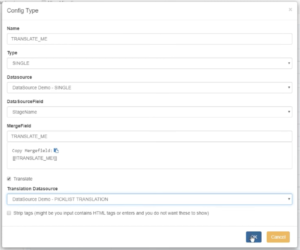
- Save the Doc Config.
Generate the Document #
- Open an Opportunity.
- Generate the document.
PDF Butler will:
- Retrieve the Opportunity.
- Read the Stage picklist value.
- Look up the translated label in Salesforce Translation Workbench.
- Insert the translated value into the document.