
Create new DataSources from existing DataSources so you only have to select the data from Salesforce one time which will be a performance improvement.
Using Filter Data Sources in PDF Butler #
Filter Data Sources allow you to create filtered views of an existing List Data Source without creating additional Salesforce queries.
Instead of creating multiple SOQL Data Sources that retrieve similar data with different filters, you can retrieve the data once and create one or more filtered Data Sources based on specific criteria.
This makes your configurations easier to maintain while reducing the number of Salesforce queries.
When to use Filter Data Sources #
Use a Filter Data Source when you already have a List Data Source containing the records you need, but you want to display only a subset of those records.
For example:
- All Opportunities
- Only Closed Won Opportunities
- Only Opportunities in the Proposal/Price Quote stage
- Opportunities above a certain amount
- Any other subset based on field values
Instead of querying Salesforce multiple times, PDF Butler filters the existing lis. t during document generation.
How Filter Data Sources Work #
A Filter Data Source:
- Uses an existing List Data Source as its parent.
- Applies one or more filter conditions.
- Creates a new filtered list.
- Can be used exactly like any other List Data Source inside a Doc Config.
The original Data Source remains unchanged.
Creating a Filter Data Source #
#
- First, create a List Data Source that retrieves all records you want to work with.
Example: All Opportunities
- Add the parent Data Source to your Doc Config.
- From the Data Source list, select: Create Filter Data Source
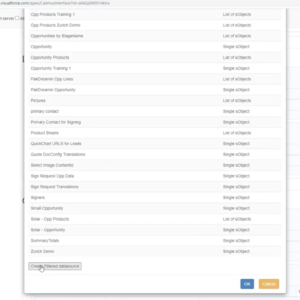
- Configure the conditions that determine which records should remain in the filtered list.
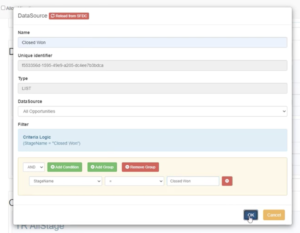
- Save the filter
After saving, the filtered Data Source becomes available alongside the original Data Source.
You can now use it anywhere in your document configuration.
Using the Filtered Data Source in a Document #
A Filter Data Source behaves exactly like any other List Data Source.
For example:
- Create a Table Row Config Type.
- Select the Filter Data Source.
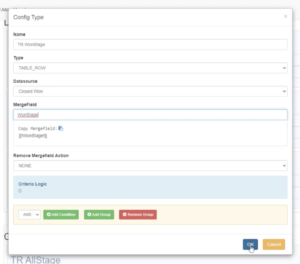
- Map the child fields you want to display.
Displaying the Number of Filtered Records #
PDF Butler also exposes metadata about the filtered Data Source.
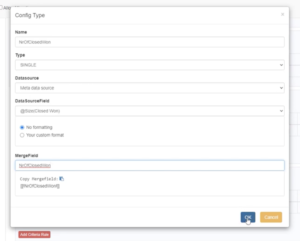
For example, you can display:
- Number of Closed Won Opportunities
- Number of filtered records
- Other metadata values available for the Data Source
This allows documents to include summaries such as:
Closed Won Opportunities: 17
The count is calculated automatically based on the filtered results.
Using Filtered Child Data Sources #
Filtered Data Sources allow you to create filtered views of an existing data source without creating additional Salesforce Data Sources. While they are commonly used to filter parent data sources, they can also be used to filter child data sources, making it easy to organize and display related records based on specific criteria.
Creating a Filtered Child Data Source #
If the parent Data Source contains child records (for example, Opportunity Products), you can also create a filtered child Data Source.
- Create a new Child Data Source.
- Select the filtered parent Data Source as its parent.
- Select the original child Data Source.
- (Optional) Add additional filter criteria.
If no additional criteria are configured, the child Data Source automatically returns only the child records belonging to the filtered parent records.
Adding Additional Child Filters #
You can further restrict which child records are included.
For example, only display Hardware products where the quantity is greater than one.
Example criteria:
| Field | Operator | Value |
|---|---|---|
| Quantity | Greater Than | 1 |
During document generation, only child records that satisfy both the parent and child filters are included.
Using Filtered Data Sources in a Document #
Filtered Data Sources behave exactly like regular Data Sources.
You can use them with:
- Table Rows
- Content Controllers
- Merge Fields
- Conditional Formatting
- Visibility Rules
Simply select the filtered Data Source during Config Type configuration.
Showing or Hiding Entire Sections #
A common use case is displaying a section only when matching records exist.
For example:
- Hardware section
- Software section
- Installation section
Configure a Content Controller that uses the filtered Data Source.
If the filtered Data Source contains records, the section is displayed.
If no records exist, the entire section is automatically removed from the generated document.
This allows documents to dynamically adjust to the available data.
Repeating Only Matching Child Records #
Inside each visible section, configure a Table Row that uses the filtered child Data Source.
For example:
- Hardware section → Hardware Products
- Software section → Software Products
- Installation section → Installation Products
Each table repeats only the records that belong to its corresponding filtered Data Source.


