
PDF Butler – SINGLE Config Type: FORM_CHECKBOX #
The FORM_CHECKBOX Config Type allows you to dynamically check or uncheck checkboxes in a Word document based on Salesforce data and configured conditions.
1. Add a Checkbox in Microsoft Word #
Before configuring PDF Butler, the checkbox must first be added to the Word template.
Enable Legacy Checkbox Controls #
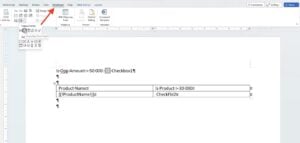
- Open the Word document.
- Go to the Developer tab.
- In the Legacy Forms section, select the Checkbox Form Field.
Insert the Checkbox #
- Add the checkbox in the desired location within the document.
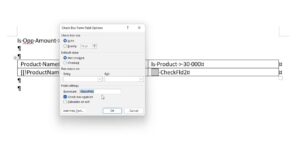
- Right-click the checkbox.
- Select Properties.
- In the Bookmark field, enter a unique name.
Example:
Approved_Checkbox
- Save the document.
2. Configure PDF Butler #
Create the Doc Config #
- In Salesforce, create a new Doc Config.
- Upload the Word document to the Doc Config Documents section if required.
Add the Data Source #
- Open the PDF Butler Editor.
- Add the required Data Source.
3. Configure the FORM_CHECKBOX Config Type #
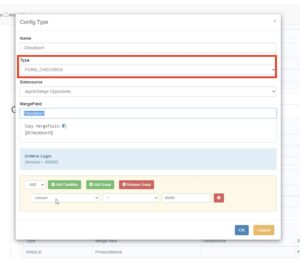
- Click Add Config Type.
- Configure the following values:
| Field | Value |
|---|---|
| Type | FORM_CHECKBOX |
| Merge Field | The bookmark name configured in Word |
Add Conditions #
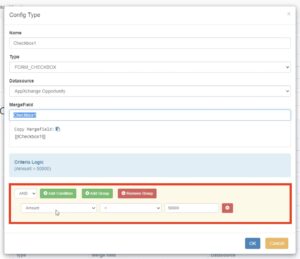
- Configure the condition that determines whether the checkbox should be checked.
- Define the appropriate field, operator, and value.
4. Save and Generate the Document #
- Click Save to Server.
- Generate the document from Salesforce.
- Verify that the checkbox is checked or unchecked according to the configured condition.
Using FORM_CHECKBOX Inside Repeating Table Rows #
If the checkbox is located inside a table row that repeats dynamically, additional configuration is required.
1. Create a Parent Table Row Config Type #
- Create a parent Config Type with:
- Type =
TABLE_ROW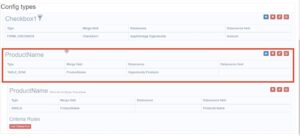
- Type =
2. Add a Child Config Type #
- Under the
TABLE_ROW, create a new Child Config Type.
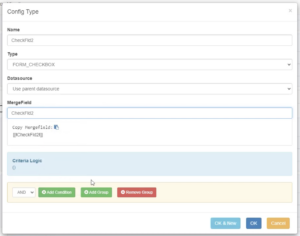
3. Configure the Child as FORM_CHECKBOX #
- Set:
- Type =
FORM_CHECKBOX
- Type =
- Configure:
- Merge Field
- Conditions
- Field mappings
4. Save and Validate #
- Click Save to Server.
- Generate the document.
- Verify that:
- Table rows repeat correctly
- Checkboxes are dynamically checked based on the configured criteria


