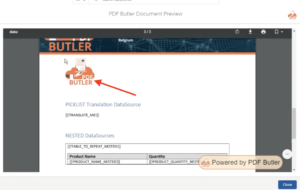
This article explains how to include images stored in Salesforce, such as company logos, in your PDF Butler documents. Images can be retrieved from Salesforce Files, Attachments, or Documents and inserted dynamically during document generation.
Read this article to understand the configuration process. You can also watch the accompanying video tutorial for a visual walkthrough of each step.
Best Practice:
Avoid using very large images. Oversized images increase Salesforce storage usage and generate unnecessarily large documents, which can negatively impact the user experience.
In this example, an Account record contains a company logo stored as a Salesforce File. The objective is to display this logo automatically in the generated document.
The configuration consists of two main steps:
- Create a Picture Data Source that retrieves the image from Salesforce.
- Configure a Picture Config Type to replace a placeholder in the Word document with the retrieved image.
Setting Up the DataSource #
- Open your existing Data Source.
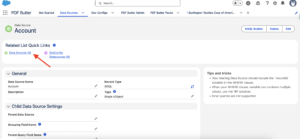
Since the image in this example belongs to the Account, we will create a child data source.
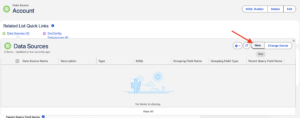
- In the Related List, click New.
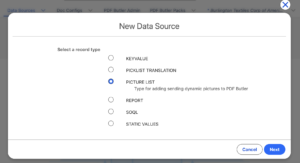
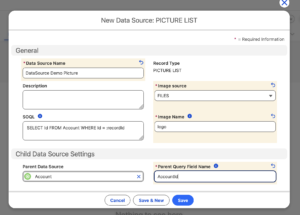
- Select Picture List as the data source type.
- Enter a name for the data source (for example, Account Logo).
- Select the Image source. (in this case “Files”)
- Inform the name of the Image.
- Inform the Parent Query Field Name.
- Save the data source.
Add the Picture Data Source to the Document #
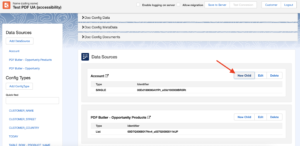
- Open your document configuration.
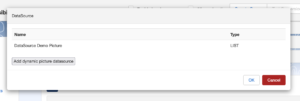
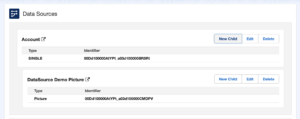
- From the existing Single Data Source, add the newly created Picture Data Source as a child.
Insert a Picture Placeholder #
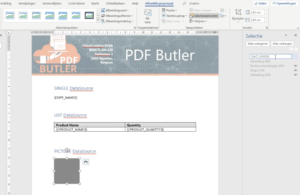
In your Word document, make sure that there is a placeholder where the image should appear.
For example: [[!Account_Logo!]]
Save the Word document and upload the updated version to the server.
Configure the Picture Config Type #
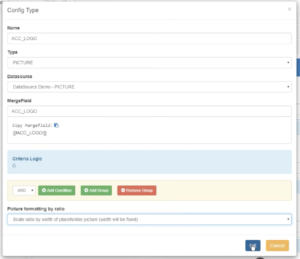
Create a new Config Type with the following settings:
| Setting | Value |
|---|---|
| Type | Picture |
| Data Source | Account Logo |
| Merge Field | Account_Logo |
Since there is only one Picture Data Source associated with this section, PDF Butler automatically selects it.
Configure the picture formatting according to your layout requirements.
Save the configuration.
Generate the Document #
Generate the document from the Salesforce record.
During generation, PDF Butler:
- Retrieves the Account record.
- Finds the file named Logo attached to that Account.
- Downloads the image.
- Replaces the placeholder with the image.
The generated document now contains the Account logo in the configured location.