PDF Butler – Additional DocConfigs #
The Additional DocConfigs Config Type allows you to dynamically append other generated documents to the main document during generation.
PDF Butler generates the additional DocConfigs and combines them with the main document into a single output file.
How It Works #
- The main document is generated.
- Additional DocConfigs are retrieved through a Data Source.
- PDF Butler generates or retrieves those documents.
- All PDFs are merged together into a single final document.
Important Notes #
- Additional DocConfigs do not need to be of type
TEMPLATE. - Static PDFs can also be appended.
- If the dynamically added DocConfigs contain Data Sources, those same Data Sources must also exist in the main Doc Config.
1. Configure the Additional DocConfig #
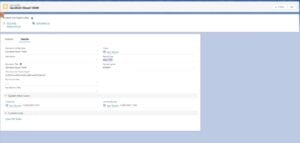
Open the Product Record #
- Open an Opportunity Product record.
- Open the related Product record.
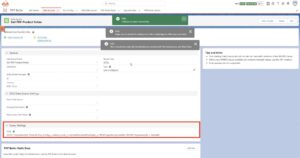
Verify the Doc Config Field #
- In the Details tab, locate the Doc Config field.
- Verify that a Doc Config record is already populated.
- If no record exists, create a new Doc Config.
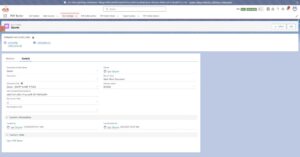
Validate the Doc Config Type #
- Open the Doc Config record.
- Confirm that the Doc Config type is:
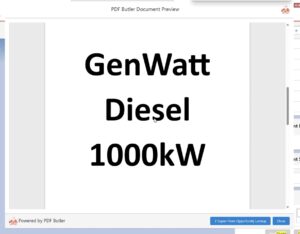
Static PDF
This document will be appended to the main generated document.
2. Configure the Main Word Doc Config #
Create the Data Source #
- Create a Data Source that retrieves the related Doc Config records.
Open the Main Doc Config #
- Open the main Word Doc Config (for example, a Quote document).
- Open the PDF Butler Editor.
- Add the Data Source created in the previous step.
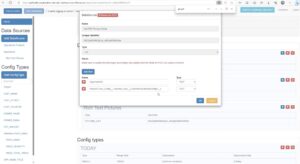
3. Configure the Additional DocConfig Config Type #
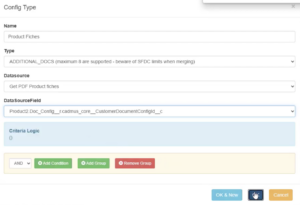
- Click Add Config Type.
- Configure the following values:
| Field | Value |
|---|---|
| Type | Additional DocConfig |
| Data Source | Data Source containing the related Doc Configs |
- Configure any additional required settings.
4. Save and Generate the Document #
- Click Save to Server.
- Generate the document from Salesforce.