
PDF Butler – Generating PDF/UA Compliant Documents #
PDF Butler allows you to generate PDF/UA (Universal Accessibility) compliant documents, making them more accessible to people using assistive technologies such as screen readers.
Enabling PDF/UA compliance helps organizations meet accessibility standards and improve the usability of generated documents for all users.
Enable PDF/UA Compliance #
To generate accessible PDF documents:
- Open the Doc Config you want to configure.
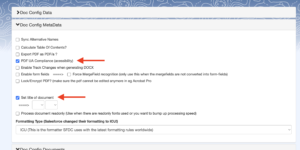
- Open the Doc Config Metadata section.
- Enable the PDF/UA Compliance option.
-
Enable Set Title of Document.
Note: Setting a document title is recommended for PDF/UA compliance, as it provides meaningful metadata that assistive technologies can use.
- Save the Doc Config.
- Generate the document using the configured Doc Config.
- Download the generated PDF.
The document will now be generated with PDF/UA accessibility features enabled.
Validate Accessibility #
After generating the document, it is recommended to verify that it meets accessibility requirements.
You can validate your PDF using an accessibility checking tool, such as PDF Accessibility Checker – A free tool specifically designed to validate PDF/UA compliance.
Important: Generating a PDF/UA-compliant document is a shared responsibility between PDF Butler and the document author.
While enabling PDF/UA Compliance in the Doc Config ensures that PDF Butler generates an accessible PDF, the Microsoft Word template must also be properly designed for accessibility.
To achieve full PDF/UA compliance, make sure your source document follows accessibility best practices.
Validate Your PDF #
- Open the accessibility validation tool.
- Select the accessibility profile you want to validate against.
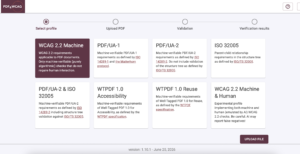
- Click Upload File.
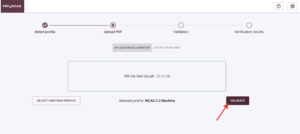
- Select the PDF generated by PDF Butler and upload it.
- Click Validate.
- Wait for the validation process to complete.
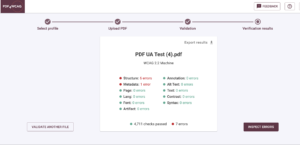
- Review the results summary.
The results page will display:
- The accessibility checks that passed.
- Any warnings or failed checks that require attention.
- Click Inspect Errors to view detailed information about each issue.
PDF Butler can generate an accessible PDF only if the source Word document is also accessible. Always validate the generated PDF with an accessibility checker and address any reported issues to ensure compliance with PDF/UA standards.


