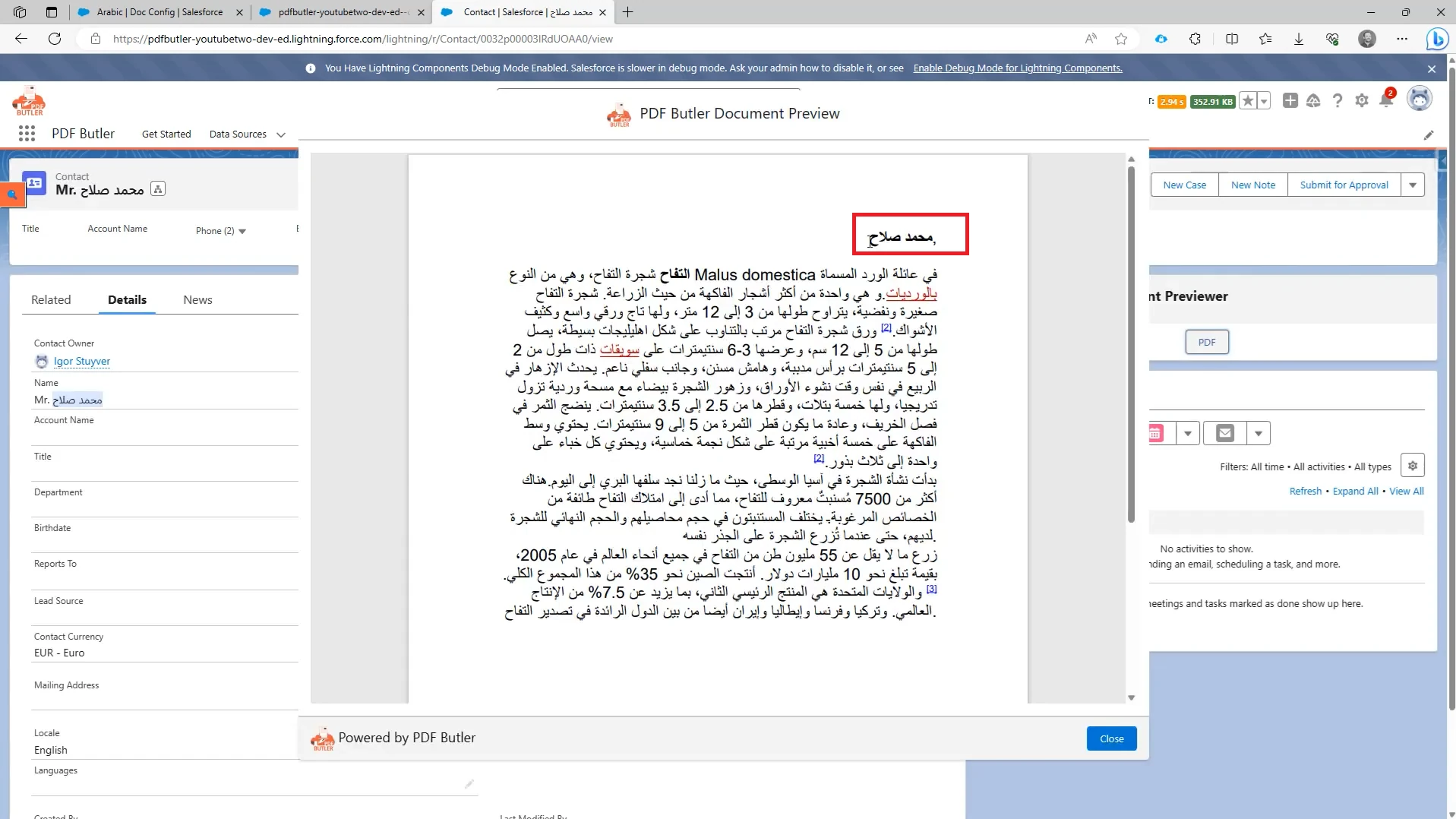
Yes. PDF Butler supports Arabic and other right-to-left (RTL) scripts in generated documents.
When preparing the Word template, format the Arabic content using the appropriate right-to-left paragraph direction and add PDF Butler merge fields where dynamic Salesforce data should appear.
During document generation, PDF Butler preserves the template formatting so right-to-left text and merged values can be included in the generated document.
Step 01: Prepare the Word Template #
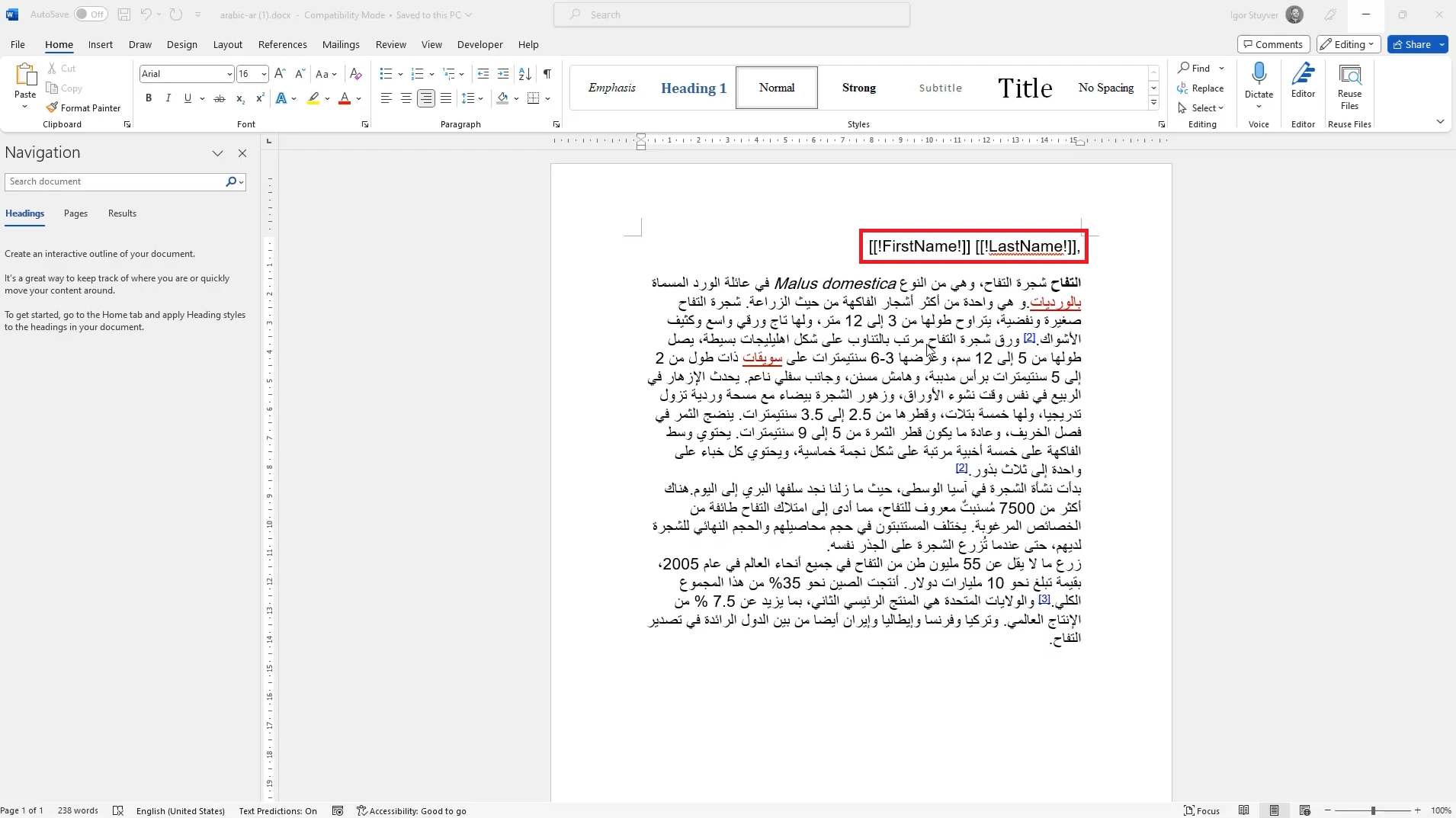
- Prepare your Microsoft Word template using the required Arabic or other right-to-left text.
- Set the paragraph or document direction to Right-to-Left where needed in Word.
- Add your PDF Butler merge fields as usual.
Step 02: Configure the PDF Butler Document #
- Upload the Word document under Doc Config Documents.
- Add the required Salesforce DataSource and config types for the merge fields in the document.
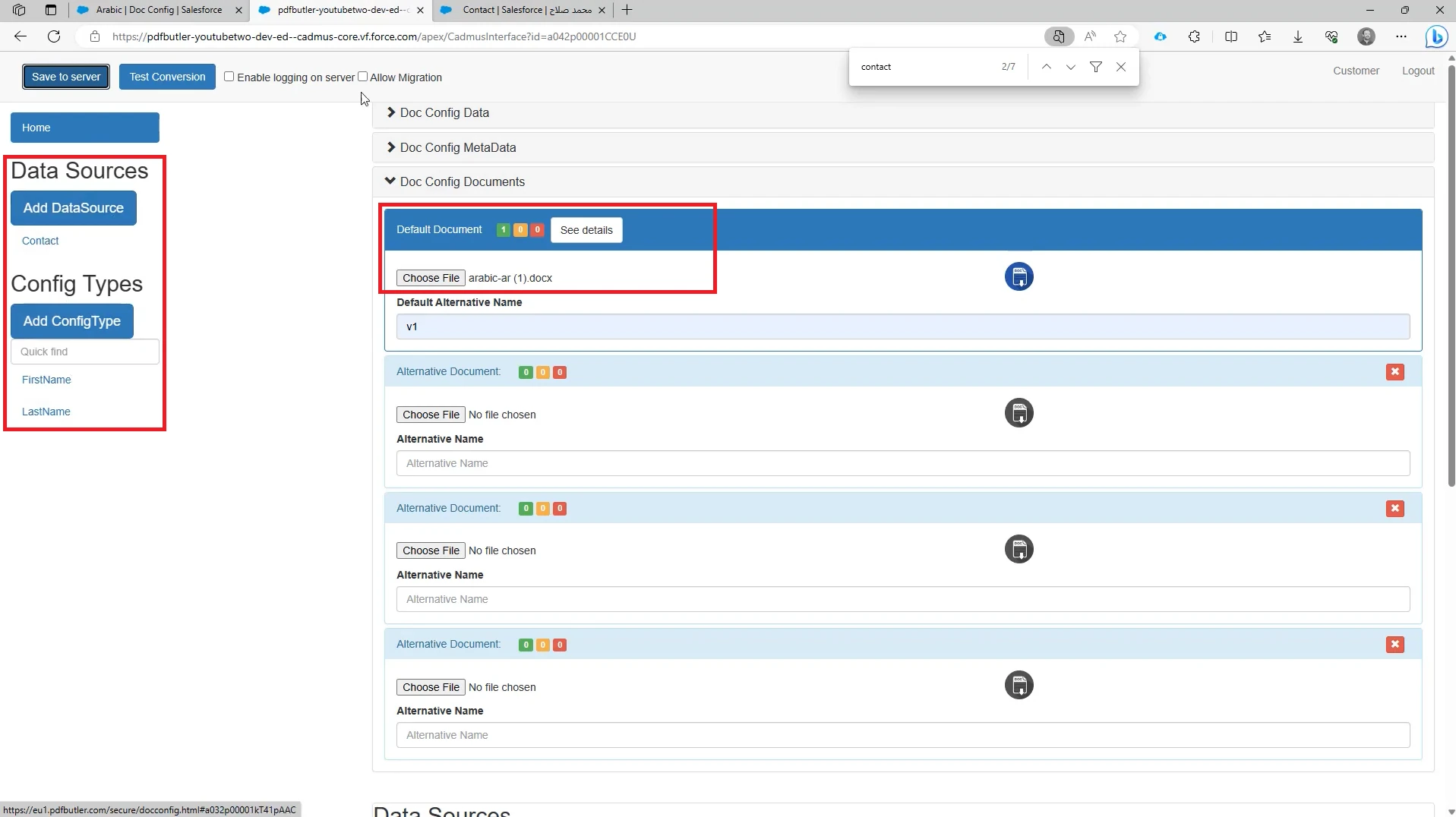
In this example, the document uses the Contact DataSource with config types for FirstName and LastName.
Note: If you need help creating the Doc Config, uploading the document, or adding DataSources, see the FORM Butler Document and DataSource Setup guide.
- When finished, click Save to Server in the upper-left corner of the page.
Step 03: Save and Test the Document #
- Generate the document to verify that the right-to-left text, formatting, and merged values appear correctly.