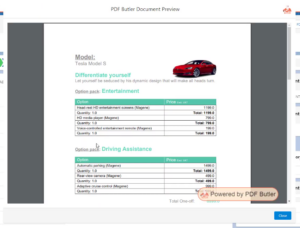
Use these ConfigTypes in a complex setup with parent-child (Nested) DataSources.
A CONTENT_CONTROLLER can be the child of another CONTENT_CONTROLLER. Here we will make an example how a ROWS_CONTROLLER is the child of a CONTENT_CONTROLLER
This is quite a complex example but gives a very good overview of the power of combining and nesting DataSources and ConfigTypes
PDF Butler – CONTENT_CONTROLLER Configuration #
A CONTENT_CONTROLLER allows entire sections of a Word document to dynamically repeat based on records returned from a Data Source.
This configuration is especially useful for:
- Nested repeating sections
- Parent/child relationships
- Dynamic document structures
- Complex table layouts
1. Create the Repeating Sections in Word #
Before configuring PDF Butler, the repeating sections must first be created in the Word template.
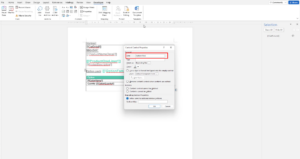
Create the Parent Content Controller #
- Open the Word document.
- Select the entire section you want to repeat.
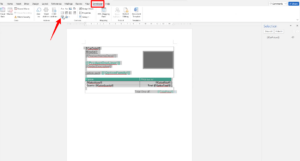
- From the Developer tab, create a Repeating Section Content Control.

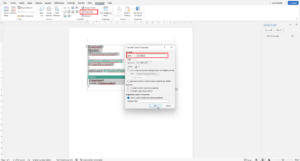
- Open Properties.
- Enter a Title for the content control.
Create Nested Content Controllers #
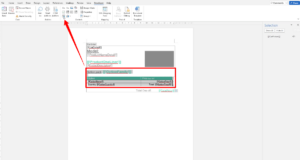
- Inside the parent content section, select another subsection you want to repeat.
- Create another Repeating Section Content Control.

- Open Properties.
- Enter a title for the nested content control.

Create Repeating Table Sections #
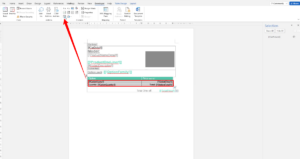
- Select the table rows or lines that should repeat dynamically.
- Create another Repeating Section Content Control.
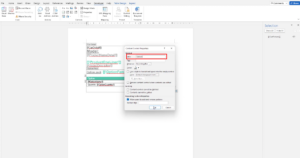
- Open Properties.
- Enter a title for the table repeating section.

Save the Document #
- Save the Word document after all content controls are configured.
2. Configure PDF Butler #
Configure Nested Data Sources #
- Create and configure all required Nested Data Sources in Salesforce.
Upload the Template #
- Open the corresponding Doc Config.
- Upload the updated Word document in the Doc Config Documents section.
3. Configure the CONTENT_CONTROLLER #
- Click Add Config Type.
- Configure the following values:
- Type =
CONTENT_CONTROLLER - Data Source = Select the appropriate Data Source
- Merge Field = Enter the merge field name (example:
CarDetail) - Remove MergeField Action Section = Configure if required

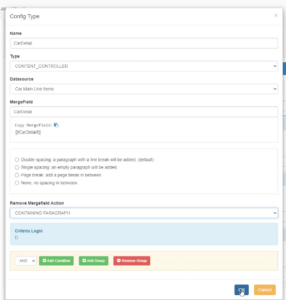
- Click Save.
4. Configure Child Config Types #
- Under the
CONTENT_CONTROLLER, create Child Single Config Types. - Map all required fields from the Data Source to the corresponding merge fields in the document.

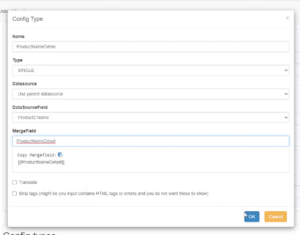
5. Configure Nested ROWS_CONTROLLER #
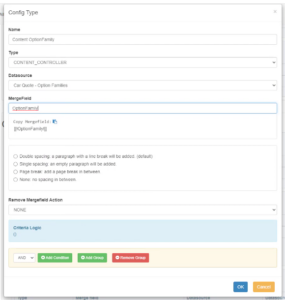
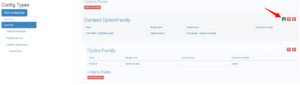
- Under the first
CONTENT_CONTROLLER, create a new Child CONTENT_CONTROLLER Config Type.

- Under this new Content Controller, create another Child Config Type.

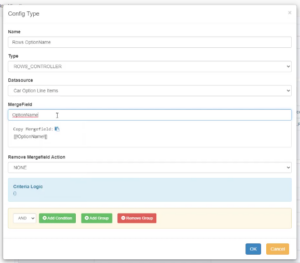
- Set the Type to
ROWS_CONTROLLER.

- Under the
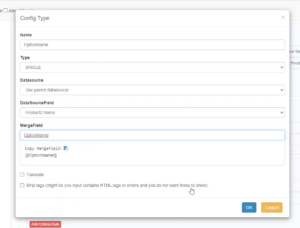
ROWS_CONTROLLER, create a new Single Child Config Type.

- Configure the required merge fields and mappings.
6. Generate and Validate the Document #
- Save the Doc Config to Server.
- Generate the document from Salesforce.
- Verify that:
- Parent sections repeat correctly
- Nested sections populate properly
- Table rows repeat dynamically
- All merge fields display the expected values