Start from MS Word to generate your PDF or MS Word documents.
The full process is actually described here: DocConfig Setup Demo – Create your first quote
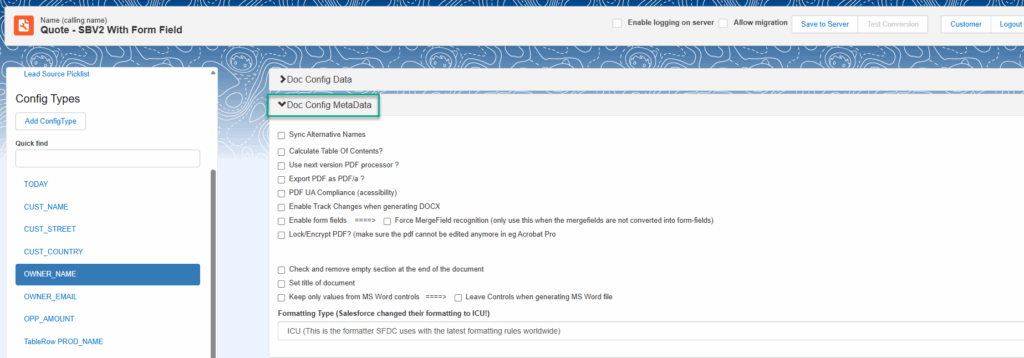
On the top of the page there is the DocConfig MetaData. Here you can set very interesting options for your document used during configuration or generation:
- Sync Alternative Names: Use this option if you want the names of all Alternatives you use in the DocConfig to be stored in the “Config MetaData” field on the DocConfig. This can be useful if you have a customization that allows for instance users to select the possible Alternatives that are configured.
- Calculate Table Of Contents: Use this option if your DOCX has a TOC and you want to update it. Might be that page numbers are changed or you dynamically added or removed sections
- Use next version PDF processor: PDF Butler is constantly evolving. If this option is presented to you, congratz, you are a customer for a long time. Best to always enable this option to be up-to-date with the latest and greatest of PDF options and standards in your generated PDF
- Export PDF as PDF/a: you need to archive your PDF for a loooooong time. Enable this option and the PDF will always open on any system
- PDF UA Compliance: Generates PDFs for people with a disability. Of course, the structure of the PDF and the titles you are responsible for, we make sure the data in the document is used correctly
- Enable Track Changes when generating DOCX: Does exactly what it says. Will make sure Track Change is enabled when you generate a DOCX
- Enable Forms: Allows to add Form Fields in your PDF. This is useful to have field filled by customer through FORM Butler or SIGN Butler. If you do not see this option, contact our support team.
- Lock/Encrypt PDF: Locks the PDF so it cannot be opened or changed without a password. The passwords can be hardcoded or come from a SINGLE DataSource
- Check and remove empty section at the end of the document: If you DOCX has multiple sections and you are using CONDITIONAL_SECTION ConfigTypes it can be that you forgot to remove a section and that might leave an empty page at the end of the document. With this option, we will check if there is an empty section at the end and remove it if required
- Set title of document: Sets the Title (not the name of the document) in the generated DOCX or PDF.
- The title can come from a SINGLE DataSource. If you do not select a DataSource and field. Then the name of the document will be used as the Title
- Keep only values from MS Word controls: Older DOCX files can have ActiveX fields or other types of field. With this option we clean them for you.