
1. Introduction #
This guide provides step-by-step instructions for installing and configuring the Peppol Invoicing managed package for Salesforce. This package enables you to send Peppol-compliant invoices directly from Salesforce, leveraging the power of PDF Butler.
Prerequisites #
Before you begin, please ensure you have the following:
- Salesforce System Administrator access.
- The PDF Butler managed package must be installed in your org before you install Peppol Invoicing. The package link will be provided by PDF Butler support.
- Credentials: login and password for the Peppol Integration, provided PDF Butler when you register PDF Butler for first time.
2. Installation & Initial Setup
#
2.1. Install the Managed Package #
- Ask for the link to our Support Team or your Account Executive Hint: for installing on a Sanbox change /login -> /test in the URL above.
- Log in to your target Salesforce org.
- Select an installation option, such as Install for Admins Only or Install for All Users.
- Click Install.
- Once the installation is complete, proceed to the post-install setup.
2.2. Peppol Admin Tab: Register the Package #
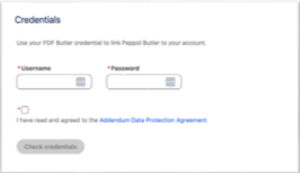
You must register the package with your provided credentials to activate the service.
- From the Salesforce App Launcher, find and open the Peppol Admin tab.
- Ask PDF Butler Support to provide the login and password for the App.
- Enter your credentials into the fields provided

- Click the Check Credentials button.
- A success message will be displayed, confirming the registration.


3. Core Configuration #
3.1. Assign Permissions #
- In Salesforce Setup, use the Quick Find box to search for Permission Sets.
- Find and click the PEPPOL Butler Admin permission set.
- Click the Manage Assignments button.
- Assign this permission set to the API user (or administrative user) responsible for the registration and Peppol API processing.
(For more information, see Salesforce Help: Assign Permission Sets to Users)
4. PDF Butler Document Configuration #
This section covers setting up the PDF Butler components to generate the invoice document.
4.1. Create the Doc Config Record #
- From the Salesforce App Launcher, find and open the PDF Butler app.
- Open the Doc Config tab and click New.
- Create a new Doc Config record with the following details:
Name: Peppol Invoice (or a name of your choice)
Record Type: Main Word Document
Delivery Option: Base64
4.2. Configure Data Sources & Template #
Hint: Check this great quick tutorial before starting this part: PDF Butler – Generate your first quote.
- Navigate to the Data Sources related list on the Doc Config record you just created.
- Create the Data Sources needed to generate your PDF document from your Invoice record (or other Salesforce object). In this example, we create 2 Data Sources to retrieve custom Salesforce Object Invoice record with the child Invoice Lines records:
Create the First Data Source Record for your Invoice obejct and populate the fields:
– Name: i.e. Peppol Invoice.
– Record Type: SOQL – because we need to retrieve Invoice__c data from Salesforce.
– Type: Single Object.
– SOQL: paste query to retrieve Invoice with the related data from other objects we want to show on the PDF document: Account, Opportunity, Contract, etc., for example:
SELECT Id, Invoice_Number__c, Invoicing_Date__c, Invoice_Amount__c, Account.BillingCountry, Account.BillingStreet, Account.BillingPostalCode, Account.BillingState, Opportunity__r.Billing_period__c, Opportunity__r.Foreign_Curr_Total_With_VAT__c, Contract__r.Invoice_Payment_Term__c FROM Invoice__c WHERE Id = :recordId
Hint : Easily to build your query use SOQL BILDER button on the Data Source record to open the SOQL builder.
- Create a child Data Source record for the multiple Invoice Lines records:
- Name: Invoice Lines.
- Record Type: SOQL.
- Type. List of sObjects.
- SOQL.
SELECT Name, Product_Description__c, Quantity__c, Invoice__c, Unit_Price__c, Total_Price__c, CurrencyIsoCode FROM Invoice_Line_Item__c WHERE Invoice__c = :recordId
(For more information, see PDF Butler Academy: How to set up Data Sources)
- On the Doc Config record page, find the Custom Links section and click Open PDF Butler

- Configure your document template with the PDF Butler web App UI. Upload here your document template and map your Salesforce Data Sources Object fields with the template placeholders

For more information on how to setup this in details, see PDF Butler – Generate your first quote.


5. PDF Butler Pack & Actionable Setup #
The PDF Butler Pack bundles the Doc Config with the Peppol “Actionable,” which triggers the process.
5.1. Create the PDF Butler Pack #
- In the PDF Butler app, open the PDF Butler Packs tab.
- Click New to create a new Pack record.
- Name: Peppol Invoice Pack (or a name of your choice)
- Leading Doc Config: Select the Peppol Invoice Doc Config record you created in step 4.1.
5.2. Create the Peppol Actionable #
- Assign ‘Peppol’ page latyout for the Actionable.Peppol Record Type. So, Admins can see all the Peppol fields on the Actionable when set Peppl record type:
- Go to Setup -> Object Manager and Open Actionable object (cadmus_core__Actionable__c) -> Page Layouts and click ‘Page Layout Assignments’ button in the top right corner of the page.
- Locate ‘Peppol’ record type. Then click ‘Edit Assignment’ and change a default to ‘Peppol’ page layout. Save changes.
- Navigate to the Actionables related list on the Pack record you just created.
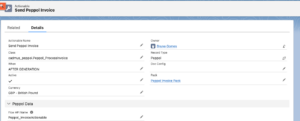
- Click New to create a new Actionable record:
- Name: Enter a descriptive name (e.g., Send Peppol Invoice)
- Record Type: Peppol (This record type is added by the Peppol Invoicing package) – Should be preselected.
- Class Name: cadmus_peppol.Peppol_ProcessInvoice.
- When (picklist): After Generation.
- Active: checked (true).
- Flow API Name: Enter the API name of the custom Flow you will configure in the next section (e.g., Peppol_InvoiceActionable). This Flow is called by the actionable and is required to map your Salesforce Invoice data into the Peppol Invoice Payload Object

6. Salesforce Record Page Setup #
Add the PDF Butler component to your Invoice record page to allow users to generate and send the invoice.
- Navigate to one of your Invoice records (or another Salesforce object page you are using, like Opportunity).
- Click the Setup Gear Icon (⚙️) in the top-right corner and select Edit Page.
- From the component list on the left, find and drag the PDF Butler Previewer component onto your page layout.
- In the component’s properties panel on the right, configure the following:
– Doc Config Id: Enter the Salesforce ID of your Doc Config record (step 4.1).
– Pack Id: Enter the Salesforce ID of your PDF Butler Pack record (step 5.1)

Hint: You can get these IDs by navigating to the records in Salesforce and copying the 18-character ID from the URL (e.g., …/a0A8d00000A…).

- Save and Activate the page.
- Check the Configuration. Locate ‘PDF Butler Document Previwer’ on the Record page. Click ‘PDF’ button. If everything was done correctly you should see your document preview open in the modal window:

– Locate the ‘Send Invoice’ button. As this component is associated with the Doc Config and the Pack (configured in step 5 above), it will invoke the Actionable class with the Flow you defined for the ‘Flow API Name’ field (e.g., Peppol_InvoiceActionable).
– In the next step below, will see how to configure the Flow step by step.


7. Flow Configuration (Data Mapping) #
The Autolaunched Flow is the most critical part of the setup. It maps your Salesforce data to the Peppol_Invoice object, which is then sent to the Peppol API.
7.1. Create the Flow #
- Click the Setup Gear Icon (⚙️) in the top-right corner and search for Flows.
- Click New Flow button on the right top corner and select Autolaunched Flow (No Trigger) type:
(For more information check, Get Started with Autolaunched Flows tutorial)


7.2. Create recordId Input Variable to get Salesforce Record Id: #
When a user clicks “Send Invoice” in the PDF Butler Previewer, the actionable passes the current Record ID into this Flow, therefore we need to create a variable recordId to store this input value. Later we can use the variable to get all the required Invoice fields and related records data.
- In the Flow’s Toolbox, click New Resource and select Resource Type Variable.
- Create a new Variable with the following properties:
- API Name: recordId (This must be the exact name)
- Data Type: Text
- Available for Input: Checked (true) – because we get the record id from the record page – from outside of the Flow:


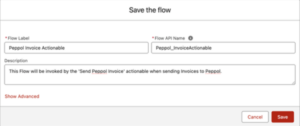
- Click ‘Save’ button in the right top corner. Enter Flow Label and Flow API Name, optionally Description, and click Save.

7.3. Create Peppol_Invoice Variable #
The Peppol Invoicing package includes Peppol Invoice (Peppol_Invoice) object that mirrors the Peppol Invoice API Payload (JSON) structure. So we create a new Apex-Defined variable with the same name Peppol_Invoice:
- To map Salesforce data from Invoice and related records.
- Send it with the Apex Action to the Peppol Web Service for an outbound request to Peppol Network
So, let’s create the variable:
- In the Flow’s Toolbox, click New Resource.
- Create a new Variable with these properties:
- API Name: Peppol_Invoice (or a name of your choice)
- Data Type: Apex-Defined
- Apex Class: cadmus_peppol.Peppol_Invoice
- Available for Output: active.


7.4. Call the Peppol Apex Action #
Next key element, is the Flow Action that will connect our flow with the Peppol Service class.
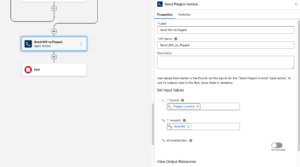
- Click on the + sign to add Action to the end of your Flow:

- Search for and select the action apex class: cadmus_peppol__Peppol_ServiceFlow:

- Set the two required Input Values for the Action – the variables we have created in previous steps:
- recordId: Pass in your recordId variable (step 7.2).
- cadmus_peppol__Peppol_Invoice (step 7.3).

- Save your Flow. At this point our flow is ready for testing and validating the payload.
- In the beginning the autolunched flow is invoked by the Actionable (cadmus_peppol.Peppol_ProcessInvoice).
- On the other side it is passing Peppol Invoice object to the Actidon (Peppol_ServiceFlow). Finally, we need to add a step in between – get Salesforce data for Peppol_Invoice object.


7.5. Get Salesforce Data #
In this step we need to get Salesforce Data in order to map it to Peppol Invoice Object. Here you basically need to replicate the queries you have done for the Data Sources queries in step 4 above.
- Add a Get Records element to the Flow.
- Use this element to retrieve your Salesforce Invoice record (and any related records, like Products or Contacts) using the recordId variable from the previous step.
– Get Invoices:

Hint: Next to the *Object field tick Also get related records (beta) checkbox – to retrieve related to Invoice object fields like: Account, Opportunity fields.
– Get Invoice Lines:
 Click Save, to save these changes in the Flow.


7.6. Map Salesforce Data to Peppol Invoice Object in the Flow #
In the previous step 7.5 we have retrieved data from Salesforce, so now we can map it to Peppol Invoice object defined by the Peppol_Invoice variable created in step 7.3. Note, this variable represents a complex structure with the nested objects and collections items we have to populate with Salesforce data:
- Invoice (cadmus_peppol__Peppol_Invoice) – top level required object.
- Supplier (Peppol_Invoice.Peppol_InvoiceSupplier) – required object.
- Extra Identifier (Peppol_InvoiceExtraIdentifier) – collection of objects (optional).
- Customer (Peppol_InvoiceCustomer) – required object.
- Delivery (Peppol_InvoiceDelivery) – object.
- Lines (Peppol_InvoiceLine) – required collection of objects.
- Additional Properties (Properties Peppol_AdditionalProperty) – collection of objects (optional).
- Vat Totals (Peppol_InvoiceVatTotals) – required collection of objects.
- Payment Methods (Peppol_InvoicePaymentMethod) – collection of objects.
- Attachments (Peppol_InvoiceAttachment) – collection of objects. Not required to map in the Flow because PDF Attachments will be generated by the PDF Butler Previewer component and handled automatically to the Peppol API.
To understand more about these objects purpose refer to Apendix 1: Invoice Object and Fields.
Now, let us see how map at least the required objects in the Flow step by step:
- Invoice. On the Flow canvas click plus to add a new Flow Assignement item and give it a name, i.e. “Invoice”. To see all the Invoice object properties refer to Invoice (Peppol_Invoice) table.
Note, that some of the fields like INVOICE_NUMBER is marked as required in the table Top-Level Invoice Fields. These are mandatory fields to create an Invoice sucessfully on the Peppol network, otherwise you will get Peppol HTTP error responses.
INVOICE_NUMBER. It shoud be a unique number or autonumber for your Invoice record. On the Assignment under the Set Variable Values -> Variable – select Peppol_Invoice variable and then select INVOICE_NUMBER property:

Next, let’s to assign a value using Equals operator from the Get Records component (step 7.5 above):
- Variable – {!Peppol_Invoice.INVOICE_NUMBER}
- Operator – Equals
- Value – {!Get_Invoice.Invoice_Number__c}. We get this values from the Get Invoice element, that in our data model example gets Invoice.Invoice_Number__c field value.

Well done! Let’s click + Add Assignment button below to map other Peppol_Invoice top-lever required properties:
- INVOICE_ISSUE_DATE: example – “2025-11-04”
{!Peppol_Invoice.INVOICE_ISSUE_DATE } Equals {!Get_Invoice.Invoicing_Date__c }
Hint: Above we provided an example how to reference Salesforce fields using Get Records. Obviously, your data model can be different. So, further we will use the static values for simplicity:
- INVOICE_TOTAL_VAT. Other properties can be mapped from the Invoice or related records query result
{!Peppol_Invoice.INVOICE_TOTAL_VAT } Equals 21
- IS_INCLUDE_VAT – default value is false. This field is not required, but it controlls other object VAT properties become required: Include VAT or Exclude VAT for all the Invoice objects. In our case let’s explicetly set it to FALSE (flow globar variable):
{!Peppol_Invoice.IS_INCLUDE_VAT} Equals FALSE
- Add new assignment for INVOICE_TOTAL_EXCL_VAT (required if IS_INCLUDE_VAT = false):
{!Peppol_Invoice.INVOICE_TOTAL_EXCL_VAT} Equals 100
{!Peppol_Invoice.INVOICE_TOTAL_INCL_VAT} Equals 121
Well done! Click ‘Save’ button on the top to save your in the Flow.


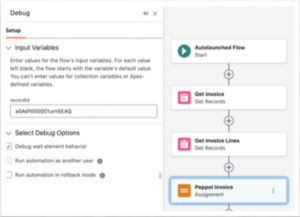
Hint: Now, you can debug the Flow to validate your Data mapping for the required properties:
- Click Debug button on the Flow page.
- On the Input Variables block populate recordId with the your Invoice id you can copy from the browser url (see step 6 for details).

- Click Run button at the bottom of the Flow page and wait until the Flow execution completes.
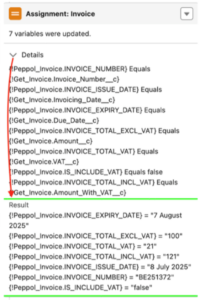
- Expand Assignment: Invoice block to check the results if all the properties were populated from the corresponding Salesforce fields:

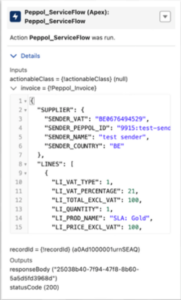
- Finally, click > Details to expand the Apex Action block to see the validation results:
– Invoice (Peppol_Invoice) – you can see your data mapping in JSON format.

Validation Result (under the Outputs) – that Peppol_Invoice.SUPPLIER object is required for the Invoice, therefore it’s now enough to provide just the top-level invoice data.
– Also you shoud see similar validation error when removeing any of the required Invoice fields that we mapped above, for example INVOICE_ISSUE_DATE. So, debuggin Flow is useful to validate your logic for every further step below before sending it to the Peppol Network.


Next, let us populate data for the Peppol_Invoice.SUPPLIER.
- Supplier. Let us populate some of the required fields for the SUPPLIER object. To add other Supplier fields to the payload refer to Supplier (Peppol_InvoiceSupplier) table.
Click + after the Invoice Assignment element to add a Supplier block:
- SENDER_PEPPOL_ID – Peppol Participant Identifier (required).:
- Identifies the supplier in the Peppol network.
- Must be registered through an Access Point (e.g., Scrada).
- Used in the invoice header so the receiver knows who sent it.
- Example: iso6523-actorid-upis:can be used for testing: 9915:test-sender
{!Peppol_Invoice.SUPPLIER.SENDER_PEPPOL_ID} Equals 9915:test-sender – this value can be stored on a Sender Account in Salesforce.
For more information, refer to Appendix 1. Peppol Id description:
- SENDER_NAME:
{!Peppol_Invoice.SUPPLIER.SENDER_NAME} Equals Test Sender– Sender Account name, for example “Sender Account”.
- SENDER_VAT:
{!Peppol_Invoice.SUPPLIER.SENDER_VAT} Equals BE0676494529– Sender Account name, for example “Sender Account”.
- SENDER_COUNTRY. Let’s also populate other address fields (not required) from the Sender’s Account.BillingAddress:
{!Peppol_Invoice.SUPPLIER.SENDER_COUNTRY} Equals {!GetRelatedObjects.Account__r.BillingCountry} // BE
{!Peppol_Invoice.SUPPLIER.SENDER_CITY} Equals {!GetRelatedObjects.Account__r.BillingCity}
{!Peppol_Invoice.SUPPLIER.SENDER_STREET} Equals {!GetRelatedObjects.Account__r.BillingStreet}
{!Peppol_Invoice.SUPPLIER.SENDER_POSTALCODE} Equals {!GetRelatedObjects.Account__r.BillingPostalCode}
- Customer. On the Flow page click + to add another Assignment block for the Customer object. To add other Customer fields to the payload refer to Customer (Peppol_InvoiceCustomer) table.
- RECIPIENT_PEPPOL_ID. The PeppolID of the receiver (the company receiving the invoice).
- Identifies the customer as a Peppol participant.
- Required to deliver the invoice through the Peppol network.
- Must also be registered with an Access Point somewhere in Peppol.
- Example: iso6523-actorid-upis::0088:123456789
{!Peppol_Invoice.CUSTOMER.RECIPIENT_PEPPOL_ID} Equals Account__r.CustomerPeppolId__c – the test value 0088:987654321 can be also set on a Customer’s Account in Salesforce.
For more information, refer to Appendix 1. Peppol Id description:
- RECIPIENT_NAME:
{!Peppol_Invoice. CUSTOMER.RECIPIENT_NAME} Equals Account__r.Name– Sender Account name, for example “Sender Account”.
- RECIPIENT_COUNTR. Let’s also populate other address fields (not required) from the Sender’s Account.BillingAddress:
{!Peppol_Invoice.CUSTOMER.RECIPIENT_COUNTRY} Equals {!GetRelatedObjects.Account__r.BillingCountry}
{!Peppol_Invoice.CUSTOMER.RECIPIENT_CITY} Equals {!GetRelatedObjects.Account__r.BillingCity}
{!Peppol_Invoice.CUSTOMER.RECIPIENT_STREET} Equals {!GetRelatedObjects.Account__r.BillingStreet}
{!Peppol_Invoice.CUSTOMER.RECIPIENT_POSTALCODE} Equals {!GetRelatedObjects.Account__r.BillingPostalCode}
- VAT Totals. Add another Assignment block for the Vat Totals. See, all the detailed info about Vat Totals properties in the VAT Totals (Peppol_InvoiceVatTotals) table.
Vat totals can have multiple items (collection) each of them we need to store into an Apex-Defined variable, let’s call it “VatTotal” that represents the Peppol_InvoiceVatTotals object:
- Click + on the Flow line (right after Customer assignmet) to add a new Assignmet bock. Let’s call it VAT Totals. Then let’s add assignments using the VatTotals variable like we did before and to assign sample numbers:
{!VatTotal.VATTOTALS_VAT_TYPE} Equals 1
{!VatTotal.VATTOTALS_VAT_TOTAL_EXCL} Equals 100
{!VatTotal.VATTOTALS_VAT_TOTAL_INCL} Equals 121 (VATTOTALS_VAT_TOTAL_EXCL + VATTOTALS_VAT_TOTAL)
{!VatTotal.VATTOTALS_VAT_TOTAL} Equals 21
{!VatTotal.VATTOTALS_VAT_PERCENTAGE} Equals 21

- Now our VatTotals variable has data, we need to add it to the Invoice object. For that we create a new Assignment:
{!Peppol_Invoice.INVOICE_VAT_TOTALS} Add {!VatTotal}

- As result we have just created two assignments for Vat Totals:
Hint: Instead of adding a single item we could us the Flow Loop component to add multiple values into Peppol_Invoice.INVOICE_VAT_TOTALS collection. Let’s demonstrate it in next step for the Invoice Line Items.
- Click + on the Flow line (right after Customer assignmet) to add a new Assignmet bock. Let’s call it VAT Totals. Then let’s add assignments using the VatTotals variable like we did before and to assign sample numbers:
- Invoice Lines. (Peppol_InvoiceLine) – collection. See, all the detailed info about Vat Totals properties in the Invoice Line (Peppol_InvoiceLine) table. In this sample Salesforce data model: Invoice (parent) has Invoice Lines (children) records. Refer to step 7.5 where we used Get Invoice Lines (Get Regords) we can Loop though all the Line Items with the Flow Loop component. Click + to add the Loop component and reference Get Invoice Lines uner the collection variable:

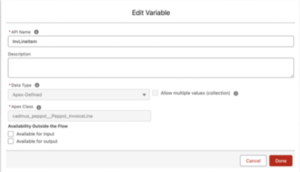
Let us create an Apex-Defined variable to represent Peppol_InvoiceLine object to store a single Line Item and call it InvLineItem:
Inside the Loop block click the + icon to create an Assignment component to map the Line Item values to the InvLineItem variable: {!InvLineItem.LI_PROD_NAME} Equals {!Loop_INV_Lines.Name} {!InvLineItem.LI_VAT_TYPE} Equals {!Loop_INV_Lines.Type__c} {!InvLineItem.LI_VAT_PERCENTAGE} Equals {!Loop_INV_Lines.LinePercentage__c} {!InvLineItem.LI_PRICE_EXCL_VAT} Equals {!Loop_INV_Lines.Vat_Excl__c}{!InvLineItem.LI_TOTAL_EXCL_VAT} Equals {!Loop_INV_Lines.Unit_Price__c}
{!InvLineItem.LI_LINE_NUMBER} Equals {!Loop_INV_Lines.Name }
Finally, create an Assignment to Add InvLineItem variable to the Peppol Invoice collection Peppol_Invoice.LINES:
{!Peppol_Invoice.LINES} Equals {!InvLineItem}



7.7. Debug Flow & Validate the Results. #
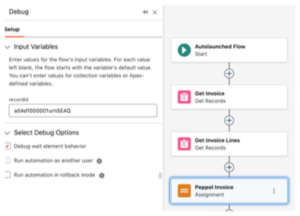
Now you can debug you flow again to check the results:
- Click ‘Debug’ button on the Flow page.
- On the Input Variables block populate recordId with the your Invoice id you can copy from the browser url (see step 6 for details).
- Click Run button at the bottom of the Flow page and wait until the Flow execution completes.
- Expand Invoice block under Action Peppol_ServiceFlow, you should see the result of your mapping:

- That’s the full sample of the working (minimal) test payload for Peppol Invoice:
{ "SUPPLIER": { "SENDER_VAT": "BE0676494529", "SENDER_PEPPOL_ID": "9915:test-sender", "SENDER_NAME": "test sender", "SENDER_COUNTRY": "BE" }, "LINES": [ { "LI_VAT_TYPE": 1, "LI_VAT_PERCENTAGE": 21, "LI_TOTAL_EXCL_VAT": 100, "LI_QUANTITY": 1, "LI_PROD_NAME": "SLA: Gold", "LI_PRICE_EXCL_VAT": 100, "LI_LINE_NUMBER": "1" } ], "IS_INCLUDE_VAT": false, "INVOICE_VAT_TOTALS": [ { "VATTOTALS_VAT_TYPE": 1, "VATTOTALS_VAT_TOTAL_INCL": 121, "VATTOTALS_VAT_TOTAL_EXCL": 100, "VATTOTALS_VAT_TOTAL": 21, "VATTOTALS_VAT_PERCENTAGE": 21 } ], "INVOICE_TOTAL_VAT": 21, "INVOICE_TOTAL_INCL_VAT": 121, "INVOICE_TOTAL_EXCL_VAT": 100, "INVOICE_NUMBER": "BE251900-01-01 00:00:00Z", "INVOICE_ISSUE_DATE": "2025-11-04", "DEFAULT_CURRENCY": "EUR", "CUSTOMER": { "RECIPIENT_STREET": "Musterstr. 1", "RECIPIENT_POSTALCODE": "10115", "RECIPIENT_PEPPOL_ID": "0208:0793904121", "RECIPIENT_NAME": "Test Recepient", "RECIPIENT_COUNTRY": "BE", "RECIPIENT_CITY": "Kapellen" }, "CREDIT_INVOICE": false, "ATTACHMENTS": [] }Note: During the debugging you might face the flow bug – Error Rendering [Object]

As a workaround (not so handy though) you can inspect the values for each assignment block if expand Details block:


8. Post-Processing & Troubleshooting #
8.1. The Peppol Sales Invoice Object #
API Name: cadmus_peppol__PeppolSalesInvoice__c
When you successfully send an invoice, a Peppol Sales Invoice record is automatically created. This object tracks the status of the submission.
- Invoice Status: This field tracks the two-step callback process:
Created: This is the first callback, indicating the invoice was successfully pushed to the Peppol network.
Processed: This is the second callback, indicating the invoice was fully processed by Peppol and a UBL document has been generated. At this stage, the UBL document will be attached to the Files related list of this PeppolSalesInvoice__c record.
- SF_RecordId__c (cadmus_peppol__SF_RecordId__c): This field stores the Salesforce Record ID of the object you sent (e.g., your custom Invoice record). You can use this field in a Flow or Trigger to relate the PeppolSalesInvoice__c record back to your original Salesforce record.
- Sample Query:
SELECT Id, Name, cadmus_peppol__Status__c, cadmus_peppol__Status_Message__c, cadmus_peppol__Invoice_Number__c FROM cadmus_peppol__PeppolSalesInvoice__c WHERE CreatedDate = TODAY ORDER BY CreatedDate DESC
- Peppol Sales Invoice Name – is an autonumber field. Populated automatically when record created.
- Invoice Number – stores Peppol Invoice Id from the Peppol response.
- Status – picklist that mirrors Peppol Invoice Status, that corresponds the corresponding HTTP status code.
‘Created’ -> 201, // Created – passed the validation ‘Processed’ -> 202, // Accepted by Peppol, UBL file generated ‘Error’ -> 500, // Internal Server Error ‘Error already sent’ -> 409, // Conflict ‘Error not on Peppol’ -> 422 // Unprocessable Entity – declined by Peppol - Status Message – even if the logs not enabled (step 8.2 below), the Status Message is populated and explains the Invoice Status.
- Notes & Attachments – stores the Invoice UBL (XML) file generated by Peppol when Invoice status updated to Processing.
Note: In case the Status Message (cadmus_peppol__Status_Message__c) field can be missing, you’ll need to add it manually on the page layout.
Go to Setup -> Object Manager -> search for Peppol Sales Invoice (cadmus_peppol__PeppolSalesInvoice__c). Then select Page Layouts in the left sidebar, click the dropdown arrow next to Peppol Sales Invoice Layout and select Edit. In the palette at the top, find the field you want to add, click and drag it onto the layout where you want it to appear. Click Save button.
8.2. Logs & Troubleshooting #
Peppol Log is a Custom Object included into the Peppol Invoicing package. Peppol Logging can be enabled or removed from the Peppol Admin tab -> Configuration Section:
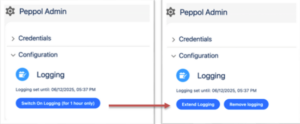
- Click Switch On Logging (for 1 hour only) button, so the logs will be generated during a next hour for your testing.
- Extend Logging button – will extend the loging time for 1 hour from a current time.
- Remove logging – will clear the logging time, so the logs will not be generated anymore.
If the logging is enabled the log records will be created for the both successful and failed transactions when sending Invoices to Peppol Network or getting a response for an Invoice status update:
- API Name: Peppol Log object (cadmus_peppol__PeppolLog__c)
- Sample Query:
SELECT Id, cadmus_peppol__Endpoint__c, cadmus_peppol__RequestPayload__c, cadmus_peppol__LogMessage__c, CreatedDate FROM cadmus_peppol__PeppolLog__c WHERE CreatedDate = TODAY ORDER BY CreatedDate DESC

- Peppol Log Name – an autonumber field, generated automatically when record created.
- Endpoint – HTTP request partial enpoint.
- Action – describes the Log origin.
- Method – HTTP request method name.
- Status Code – HTTP request status code.
- Payload – HTTP request payload.
- Log Message – provides extra details about the request success or error processing.

Note: In case the fields are not on the page layout:
- Log Message (cadmus_peppol__LogMessage__c).
- Payload (cadmus_peppol__RequestPayload__c).
Go to Setup -> Object Manager -> search for Peppol Log (cadmus_peppol__PeppolLog__c). Then open Page Layouts in the left sidebar, click the dropdown arrow next to Peppol Log Layout and select Edit. In the palette at the top, find the fields you want to add, click and drag it onto the layout where you want them to appear. Click Save.
Deprecated Fields. Perform same steps to remove the deprected fields from the page layout:
- Request Body
- Response Body
- Error Message
Appendix 1. Peppol Id – Peppol Participant Identifier. #
A Peppol ID (or Peppol Participant Identifier) is essentially a phone number for companies on the electronic invoicing network. Just as you need a unique phone number to receive a call, a company needs a unique Peppol ID to receive electronic invoices (e-invoices) and other business documents.
The Core Concept
- What it does: It is a unique digital address that ensures a document (like an invoice) is routed to the exact right recipient within the Peppol network.
- Who needs it: Primarily receivers of documents. If you only send invoices, you don’t strictly need a Peppol ID, but your customer (the receiver) must have one so you know where to send it. However, most businesses register one so they can do both.
The Structure (The Technical Part)
A Peppol ID isn’t just a random number; it follows a strict standard (ISO 6523). It is always composed of two parts separated by a colon:
<Scheme ID>:<Participant ID>
- Scheme ID (Prefix): A 4-digit code that tells the network what kind of ID is coming next.
- Participant ID (Value): The actual company ID number (like a VAT number or registration number).
- For example, in Salesforce we can take a 4-digit prefix and add a customer VAT number. Here are some common examples:


How It Works in Practice
- When you send an invoice via Peppol, your software (or Access Point) looks at the Peppol ID to determine the destination:
- You enter the customer’s Peppol ID (e.g., 0208:0123456789).
- The network checks the SMP (Service Metadata Publisher)—basically a giant address book.
- The SMP tells your system which Access Point serves that specific Peppol ID.
- The invoice is delivered securely to that Access Point.
How to Find a Peppol ID
- If you need to find the ID for a customer you want to invoice, you generally have two options:
- Ask the Customer: It is often listed on their website or purchase orders.
- Peppol Directory: You can search the Peppol Directory by company name to find their ID and see if they are registered to receive invoices.
Appendix 2. Peppol Invoice Structure #
- Peppol Invoice (cadmus_peppol__Peppol_Invoice) – top level object.
- Required for the payload.
- Description: This is the root container for the invoice being sent over the Peppol network. It holds all the main invoice data — such as who is sending the invoice, who is receiving it, the delivery information, the detailed lines, taxes, payment methods, and any attachments. Structuring the invoice in this object ensures everything needed for Peppol / UBL compliance is included in one cohesive payload.
- Supplier (Peppol_InvoiceSupplier) – object.
- Required for the payload.
- Description:This represents the party issuing (sending) the invoice — i.e. your company (the seller). It includes identifiers needed for Peppol routing, contact information, VAT / tax numbers, and any “extra identifiers” that may be required to uniquely identify the supplier on Peppol. This ensures the recipient (customer) and the Peppol network know exactly who the invoice is coming from and that it is legally valid.
- Extra Identifier (Peppol_InvoiceExtraIdentifier) – collection under Supplier.
– Description: This is a list of additional identifiers for your company (supplier) beyond the primary ones (like VAT number). In Peppol / UBL, a party can have multiple identifiers (for example, GLN, tax number, or other scheme). These extra identifiers make sure your supplier identity is correctly recognized, especially in cases where the customer or Peppol requires a specific identifier scheme.
- Customer (Peppol_InvoiceCustomer) – object. Required for the payload.
- Description:This describes the party receiving the invoice — i.e. your customer (the buyer). It includes their Peppol ID, business identifiers (VAT, GLN, etc.), contact info, and address. This information is critical for routing the invoice correctly through the Peppol network and ensuring the invoice is legally addressed to the correct business entity.
- Extra Identifier (Peppol_InvoiceExtraIdentifier) – collection under Supplier.
– Not required.
– Description: This is a list of additional identifiers for your company (supplier) beyond the primary ones (like VAT number). In Peppol / UBL, a party can have multiple identifiers (for example, GLN, tax number, or other scheme). These extra identifiers make sure your supplier identity is correctly recognized, especially in cases where the customer or Peppol requires a specific identifier scheme.
- Delivery (Peppol_InvoiceDelivery) – object. A yellow triangle with a white exclamation mark AI-generated content may be incorrect.Not required for the payload. Note: though the object is not required if added to the payload you must populate it’s required properties, see Delivery (Peppol_InvoiceDelivery).
Description:This captures details about where (and when) goods or services were delivered (or will be delivered), if applicable. It contains a delivery date, the delivery address, and an identifier (with type) for the delivery location. This is important in many use cases (especially goods) to link the invoice to the actual delivery, which is often required in formal invoicing / UBL documents. - Invoice Lines – collection of Peppol_InvoiceLine objects.
- Required for the payload.
- Description: This is a list of the individual items, services, or billing lines on the invoice. Each line holds detailed information (e.g. description, quantity, unit price, discounts, VAT) so that the invoice can be itemized in a way that is transparent, auditable, and consistent with UBL / Peppol requirements. This level of detail is necessary for accurate calculation of totals, tax, and for the buyer to understand exactly what they are being billed for.
- Additional Properties – collection of Peppol_AdditionalProperty objects.
– Not required.
Note: though the object is not required if added to the payload you must populate it’s required properties, see Additional Propertiey (Peppol_AdditionalProperty).
– Description. This is a list of additional identifiers for your company (supplier) beyond the primary ones (like VAT number). In Peppol / UBL, a party can have multiple identifiers (for example, GLN, tax number, or other scheme). These extra identifiers make sure your supplier identity is correctly recognized, especially in cases where the customer or Peppol requires a specific identifier scheme.
- Invoice VAT Totals – collection of Peppol_InvoiceVatTotals objects.
- Required for the payload.
- Description: This represents the summary of VAT amounts broken down (e.g. by VAT rate). Instead of just having a gross VAT amount, these summaries ensure that the invoice clearly states how much VAT is charged per rate, and how it contributes to the invoice total. This is essential for compliance and for accounting purposes for both parties, as well as for proper UBL / Peppol formatting and validation.
- Invoice Payment Methods – collection of Peppol_InvoicePaymentMethod objects.
- Not required for the payload. Note: though the object is not required if added to the payload you must populate it’s required properties, see Payment Method (Peppol_InvoicePaymentMethod).
- Description: This defines how the customer is expected to pay the invoice (or what payment methods are acceptable). For example, bank transfer, credit terms, or other methods. By explicitly listing acceptable payment methods, you communicate payment instructions to the customer in a structured way, and help ensure that payment terms are clear and machine-readable, which is especially useful in automated systems or accounting software.
- Attachments – collection of Peppol_InvoiceAttachment objects.
- Not required for the payload. Note: The Default PDF attachment is generated from the PDF Butler Actionable, so you don’t need to add attachments to the payload in a Flow or Apex.
- Description: These are any files or additional documents attached to the invoice, such as PDF versions, supporting documentation, or evidence (e.g., delivery notes or signed receipts). Including attachments ensures that everything needed to support or validate the invoice is bundled and can travel with the invoice over Peppol, making it easier for the customer to review and for automated systems to archive or reconcile the invoice.
Appendix 3. Peppol Invoice Properties: #
Invoice (Peppol_Invoice)
| Apex-Defined Variable (FLOW) | Data Type | Required | Description |
| INVOICE_NUMBER | String [ 1 .. 250 ] characters | Yes | The invoice number. |
| CREDIT_INVOICE | Boolean or null | No | The invoice is a credit invoice. Default value is false. |
| INVOICE_ISSUE_DATE | String <date> | Yes | The invoice issue date (format: YYYY-MM-DD). |
| INVOICE_EXPIRY_DATE | String or null <date> | No | Invoice Expiry Date |
| INVOICE_REFERENCE | String or null <= 250 characters | No | The invoice or credit note to which this document refers |
| BUYER_REFERENCE | String or null <= 250 characters | No | The buyer’s reference. |
| PURCHASE_ORDER_REFERENCE | String or null | No | The purchase order reference |
| SALES_ORDER_REFERENCE | String or null | No | The sales order reference |
| DESPATCH_DOCUMENT_REFERENCE | String or null | No | The despatch document reference. |
| DEFAULT_CURRENCY | String or null <= 3 characters | Yes | The currency of the invoice according to ISO 4217. Default value is EUR. |
| PAYABLE_ROUNDING_AMOUNT | Number or null <double> | No | Payable Rounding Amount. The payable rounding amount. The amount to be added to the invoice total to round the amount to be paid. Max precision is 2. |
| INVOICE_PAYMENT_TERM_DESCRIPTION | String or null | No | The payment terms for the invoice. Example: Net within 30 days. |
| NOTE | String or null | No | The invoice comment. |
| IS_INCLUDE_VAT | Boolean or null | No | The invoice is including VAT. Default value is false. |
| INVOICE_TOTAL_INCL_VAT | Number <double> | Yes | The total invoice amount including VAT. Default value is 0. Max precision is 2. |
| INVOICE_TOTAL_EXCL_VAT | Number <double> | Yes | The total invoice amount excluding VAT. Default value is 0. Max precision is 2. |
| INVOICE_TOTAL_VAT | Number <double> | Yes | The total invoice VAT amount. Default value is 0. Max precision is 2. |
| SUPPLIER | Object: Peppol_InvoiceSupplier | Yes | Invoice party. |
| CUSTOMER | Object:
Peppol_InvoiceCustomer |
Yes | Invoice party. |
| DELIVERY | Object:
Peppol_InvoiceDelivery |
No | Sales invoice delivery.
Note: though the object is not required if added to the payload you must populate it’s required properties. |
| LINES | Array of Objects: Peppol_InvoiceLine | Yes | The invoice lines. |
| INVOICE_VAT_TOTALS | Array of Objects:
Peppol_InvoiceVatTotals |
Yes | Invoice VAT Totals. |
| INVOICE_PAYMENT_METHODS | Array of Objects:
Peppol_InvoicePaymentMethod |
No | The payment methods.
Note: though the object is not required if added to the payload you must populate it’s required properties. |
| ATTACHMENTS | Array of Objects:
Peppol_InvoiceAttachment |
No | Note: Default: Invoice PDF attachment generated by PDF Butler from an Invoice record page in Salesforce. |
Supplier (Peppol_InvoiceSupplier)
| Apex-Defined Variable (FLOW) | Data Type | Required | Description |
| SENDER_NAME | String | Yes | The supplier’s company name. |
| SENDER_PEPPOL_ID | String | Yes | The Peppol ID of the party. Example: 0208:0793904121.
For more information, refer to Appendix 1. Peppol Id description: |
| SENDER_CODE | String or null | No | The party identification code. |
| SENDER_LANGUAGE_CODE | String <= 2 characters or null | No | The party language code according to ISO 639-1. |
| SENDER_STREET | String or null | No | The street name. |
| SENDER_STREET_NR | String or null | No | Supplier’s street number. |
| SENDER_STREET_BOX | String or null | The street postbox. | |
| SENDER_CITY | String or null | No | Supplier’s city. |
| SENDER_POSTALCODE | String or null | No | Supplier’s zip code. |
| SENDER_COUNTRY_SUBENTITY | String or null | No | The country subentity. |
| SENDER_COUNTRY | String | Yes | Supplier’s country code (2-letter ISO). .Note, that it will accept only the country code, i.e. BE, NOT the country name ‘Belgium’. |
| SENDER_CONTACT_TEL | String <= 50 characters or null | No | The supplier’s contact phone. |
| SENDER_CONTACT_EMAIL | String <= 250 characters or null | No | The supplier’s contact email. |
| SENDER_INVOICE_EMAIL | String <= 250 characters or null | No | The supplier’s invoice email address. |
| SENDER_CONTACT_NAME | String or null | No | The supplier’s contact person. |
| SENDER_VAT_STATUS | Integer, Enum: 1 2 3. | No | 1: Subject to VAT.
2: Not subject to VAT. 3: Small business VAT exemption |
| SENDER_TAX_NUMBER_TYPE | Integer or null | No | The party tax number. |
| SENDER_TAX_NUMBER | String, Enum: 1 2 3 | No | 1-Belgium,
2-Netherlands, 3-France. The tax number typed used to identify the party. |
| SENDER_LEGAL_PERSON_REGISTER | String or null | No | The legal person register details of the party, only applicable for the supplier party. Example: ‘RPR Gent, Afdeling Oudenaarde’ |
| SENDER_VAT | String | Yes | The party VAT number. This must be a valid VAT number! |
| SENDER_GLN_NUMBER | String or null | No | The party GLN number. This must be a valid GLN number! |
| SENDER_EXTRA_IDENTIFIERS | Array of Objects:
(Peppol_InvoiceExtraIdentifier) or null |
No | Additional identifiers for the supplier. |
Customer (Peppol_InvoiceCustomer)
| Apex-Defined Variable | Data Type | Required | Description |
| RECIPIENT_PEPPOL_ID | String | Yes | The Peppol ID of the party. Example: 0208:0793904121
For more information, refer to Appendix 1. Peppol Id description: |
| RECIPIENT_NAME | String | Yes | The customer’s company name. |
| RECIPIENT_CODE | String or null | No | The party identification code. |
| RECIPIENT_LANGUAGE_CODE | String <= 2 characters or null | No | The party language code according to ISO 639-1. |
| RECIPIENT_STREET | String or null | No | Customer’s street name. |
| RECIPIENT_STREET_NR | String or null | No | Customer’s street number. |
| RECIPIENT_STREET_BOX | String or null | No | The street postbox. |
| RECIPIENT_CITY | String or null | No | Customer’s city. |
| RECIPIENT_POSTALCODE | String or null | No | Customer’s zip code. |
| RECIPIENT_COUNTRY_SUBENTITY | String or null | No | The country subentity. |
| RECIPIENT_COUNTRY | String | Yes | Customer’s country code (2-letter ISO). Default: BE.
– Note, that it will accept only the country code, i.e. BE, NOT the country name ‘Belgium’. |
| RECIPIENT_PHONE | String <= 50 characters or null | No | The party phone number. |
| RECIPIENT_EMAIL | String <= 250 characters or null | No | The party email address. |
| RECIPIENT_INVOICE_EMAIL | String <= 250 characters or null | No | The party invoice email address. |
| RECIPIENT_CONTACT_NAME | String or null | No | The party contact name. |
| RECIPIENT_VAT_STATUS | Integer. Enum: 1 2 3. | No | 1: Subject to VAT.
2: Not subject to VAT. 3: Small business VAT exemption |
| RECIPIENT_VAT | String or null | No | The customer’s VAT number. |
| RECIPIENT_TAX_NUMBER_TYPE | Integer or null | No | The party tax number according to the taxNumberType. |
| RECIPIENT_TAX_NUMBER | String.
Enum: 1 2 3. |
No | 1-Belgium, 2-Netherlands, 3-France.
The tax number typed used to identify the party. |
| RECIPIENT_LEGAL_PERSON_REGISTER | String or null | No | The legal person register details of the party, only applicable for the supplier party. |
| RECIPIENT_GLN_NUMBER | String or null | No | The party GLN number. This must be a valid GLN number! |
| SENDER_EXTRA_IDENTIFIERS | Array of Objects:
(Peppol_InvoiceExtraIdentifier) or null |
No | Additional identifiers for the supplier or customer. |
Extra Identifiers (Peppol_InvoiceExtraIdentifier)
| Apex-Defined Variable | Data Type | Required | Description |
| IDENTIFIER | String | No | Additional identifiers for the supplier or customer. |
Delivery (Peppol_InvoiceDelivery)
| Apex-Defined Variable | Peppol JSON Property | Required | Description |
| INVOICE_DELIVERY_DATE | String or null | No | The actual delivery date (YYYY-MM-DD). |
| DELIVERY_IDENTIFIER_TYPE | Integer (Enum) or null | No | Specifies the type of identification number used to uniquely identify a company, organization, or item.
1: Numero d’entreprise / ondernemingsnummer / Unternehmensnummer / Enterprise number (Belgium) 2: Kamer van koophandel nummer (the Netherlands) 3: SIRENE (France) 20: Global Location Number [GLN] (must be 13 digits) 21: Global Trade Item Number [GTIN] (must be 8, 12, 13, or 14 digits) 22: GS1 identification key (must be between 8 and 20 digits) |
| DELIVERY_IDENTIFIER | String or null | Yes/No | Required when DELIVERY_IDENTIFIER_TYPE is provided. |
| DELIVERY_ADDRESS_STREET | String or null | No | Delivery street. |
| DELIVERY_ADDRESS_STREET_NR | String or null | No | Delivery street number. |
| DELIVERY_ADDRESS_STREET_BOX | String or null | No | The street postbox. |
| DELIVERY_ADDRESS_CITY | String or null | No | Delivery city. |
| DELIVERY_ADDRESS_POSTALCODE | String or null | No | Delivery zip code. |
| DELIVERY_ADDRESS_COUNTRY_SUBENTITY | String or null | No | |
| DELIVERY_ADDRESS_COUNTRY | String | Yes | String <= 2 characters. The party country code according to ISO 3166-1 alpha 2. Default: BE |
VAT Totals (Peppol_InvoiceVatTotals)
| Apex-Defined Variable | Data Type | Required | Description |
| VATTOTALS_VAT_TYPE | Integer Enum: 1 2 3 4 5 6 7 8 9 10 20 21 22 50 51 52 53 54 70 71 72
|
Yes | The VAT type. Default is standard rate (1).
1: Standard rate (If line is 0% VAT then Zero rate must be used. Standard rate cannot be used even if it is the standard rate for this product/service) (Belgium: VAT Box 01, 02 or 03) 2: Zero rate (Belgium: VAT Box 00) 3: Exempt from tax (Diversen na BTW/Divers hors TVA) (Belgium: Not on VAT Declaration) 4: ICD Services B2B (ICL B2B Diensten/LIC Services B2B) (Belgium: VAT Box 44) 5: ICD Goods (ICL Goederen/LIC Marchandises) (Belgium: VAT Box 46) 6: ICD Manufacturing cost (ICL Maakloon/LICTravail à façon) (Belgium: VAT Box 47) 7: ICD Assembly (ICL Montage/LIC Montage) (Belgium: VAT Box 47) 8: ICD Distance (ICL Afstand/LIC Distance) (Belgium: VAT Box 47) 9: ICD Services (ICL Diensten/LIC Services) (Belgium: VAT Box 47) 10: ICD Triangle a-B-c (ICL Driehoek a-B-c/LIC Triangle a-B-c) (Belgium: VAT Box 46) 20: Export non E.U. (Export niet E.G./Export non C.E.) (Belgium: VAT Box 47) 21: Indirect export (Onrechtstreekse uitvoer/Export indirect) (Belgium: VAT Box 47) 22: Export via E.U. (Export via E.G./Export via C.E.) (Belgium: VAT Box 47) 50: Reverse charge (Medecontractant/Cocontractant) (Belgium: VAT Box 45) 51: Financial discount (Belgium: Not on VAT Declaration) 52: 0% Clause 44 (Artikel 44/Article 44) (Belgium: VAT Box 00) 53: Standard exchange (Standaardruil/Echange standard) (Belgium: VAT Box 03) 54: Margin (Marge/Marge) 70: OSS Goods 71: OSS Services 72: OSS Import |
| VATTOTALS_VAT_PERCENTAGE | Number <double> | Yes | The VAT percentage for this category. Max precision is 2. |
| VATTOTALS_VAT_TOTAL_EXCL | Number <double> | Yes | The total base amount for this VAT category. |
| VATTOTALS_VAT_TOTAL_INCL | Number <double> | Yes | The total amount incl. VAT for this category. |
| VATTOTALS_VAT_TOTAL | Number <double> | Yes | The total VAT amount for this category. Default is 0. Max precision is 2. |
| NOTE | String or null | No | The invoice note. Example: ‘Verlegging van heffing’, ‘Statiegeld’ |
Invoice Line (Peppol_InvoiceLine)
| Apex-Defined Variable | Data Type | Required | Description |
| LI_LINE_NUMBER | String | Yes | The line number, must be unique for each line. |
| LI_ITEM_CODE_SELLER | String or null | No | The seller’s item code. |
| LI_ITEM_CODE_BUYER | String or null | No | The buyer\’s item code. |
| LI_PROD_NAME | String | Yes | Description or name of the item. |
| LI_ITEM_ORIGIN_COUNTRY_CODE | String or null, String <= 2 characters | No | The shipping country of origin according to ISO 3166-1 alpha 2. |
| LI_QUANTITY | Number <double> | Yes | The quantity of items. Default value is 0. Max precision is 4. |
| LI_UNIT_TYPE | Integer. Enum: 1 2 3 4 5 100 101 102 103 104 105 106 200 201 202 203 300 301 400 401 | No | 1: One or unit.
2: Piece 3: Pallet 4: Container 20ft 5: Container 40ft 100: Second 101: Minute 102: Hour 103: Day 104: Month 105: Year 106: Week 200: Milligram 201: Gram 202: Kilogram 203: Ton 300: Meter 301: Kilometer 400: Liter 401: Milliliter |
| LI_PRICE_EXCL_VAT | Number or null <double> | Yes/No | The item utit price excluding VAT, required when IS_INCLUDE_VAT is set to false. Default is 0. Max precision is 4. See, the Invoice table above: IS_INCLUDE_VAT |
| LI_PRICE_INCL_VAT | Number or null <double> | Yes/No | The item unit price including VAT, required when IS_INCLUDE_VAT is set to true. Default is 0. Max precision is 4. See, the Invoice table above: IS_INCLUDE_VAT |
| LI_VAT_TYPE | Integer
Enum: 1 2 3 4 5 6 7 8 9 10 20 21 22 50 51 52 53 54 70 71 72 |
Yes | The VAT type. Default is standard rate (1).
1: Standard rate (If line is 0% VAT then Zero rate must be used. Standard rate cannot be used even if it is the standard rate for this product/service) (Belgium: VAT Box 01, 02 or 03) 2: Zero rate (Belgium: VAT Box 00) 3: Exempt from tax (Diversen na BTW/Divers hors TVA) (Belgium: Not on VAT Declaration) 4: ICD Services B2B (ICL B2B Diensten/LIC Services B2B) (Belgium: VAT Box 44) 5: ICD Goods (ICL Goederen/LIC Marchandises) (Belgium: VAT Box 46) 6: ICD Manufacturing cost (ICL Maakloon/LICTravail à façon) (Belgium: VAT Box 47) 7: ICD Assembly (ICL Montage/LIC Montage) (Belgium: VAT Box 47) 8: ICD Distance (ICL Afstand/LIC Distance) (Belgium: VAT Box 47) 9: ICD Services (ICL Diensten/LIC Services) (Belgium: VAT Box 47) 10: ICD Triangle a-B-c (ICL Driehoek a-B-c/LIC Triangle a-B-c) (Belgium: VAT Box 46) 20: Export non E.U. (Export niet E.G./Export non C.E.) (Belgium: VAT Box 47) 21: Indirect export (Onrechtstreekse uitvoer/Export indirect) (Belgium: VAT Box 47) 22: Export via E.U. (Export via E.G./Export via C.E.) (Belgium: VAT Box 47) 50: Reverse charge (Medecontractant/Cocontractant) (Belgium: VAT Box 45) 51: Financial discount (Belgium: Not on VAT Declaration) 52: 0% Clause 44 (Artikel 44/Article 44) (Belgium: VAT Box 00) 53: Standard exchange (Standaardruil/Echange standard) (Belgium: VAT Box 03) 54: Margin (Marge/Marge) 70: OSS Goods 71: OSS Services 72: OSS Import |
| LI_VAT_PERCENTAGE | Number <double> | Yes | The VAT percentage. Can be 0% for VAT excluded items. Default is 0. Max precision is 2. |
| LI_TOTAL_DISCOUND_EXCL_VAT | Number or null <double> | No | The total discount for the entire line (not per product) excluding VAT, can be used when IS_INCLUDE_VAT is set to false. Default is 0. Max precision is 2. See, the Invoice table above: IS_INCLUDE_VAT |
| LI_TOTAL_DISCOUND_INCL_VAT | Number or null <double> | No | The total discount for the entire line (not per product) including VAT, can be used when IS_INCLUDE_VAT is set to true. Default is 0. Max precision is 2. See, the Invoice table above: IS_INCLUDE_VAT |
| LI_TOTAL_EXCL_VAT | Number or null <double> | Yes/No | The total line price excluding VAT, should be equal to:
(LI_QUANTITY (Line Quantity) quantity * LI_PRICE_EXCL_VATitemExclVat) (Line Unit Price). – Note, LI_TOTAL_DISCOUND_EXCL_VAT, required when IS_INCLUDE_VAT is set to false. Default is 0. Max precision is 2. See, the Invoice table above: IS_INCLUDE_VAT |
| LI_TOTAL_INCL_VAT | Number or null <double> | Yes/No | The total line price excluding VAT, should be equal to: LI_QUANTITY (Line Quantity) * LI_PRICE_INCL_VAT (Line Unit Price).
(quantity * itemInclVat) – Note, LI_TOTAL_DISCOUND_INCL_VAT, required when IS_INCLUDE_VAT is set to true. Default is 0. Max precision is 2. |
| LI_INVOICE_PERIOD_START_DATE | String or null <date> | No | The start date of the invoice line period. |
| LI_INVOICE_PERIOD_END_DATE | String or null <date> | No | The end date of the invoice line period. |
| LI_STANDARD_ITEM_IDENTIFIER_TYPE | Integer
Enum: 1 2 3 20 21 22 |
No | Specifies the type of identification number used to uniquely identify a company, organization, or item.
1: Numero d’entreprise / ondernemingsnummer / Unternehmensnummer / Enterprise number (Belgium) 2: Kamer van koophandel nummer (the Netherlands) 3: SIRENE (France) 20: Global Location Number [GLN] (must be 13 digits) 21: Global Trade Item Number [GTIN] (must be 8, 12, 13, or 14 digits) 22: GS1 identification key (must be between 8 and 20 digits) global Integer LI_STANDARD_ITEM_IDENTIFIER_TYPE = null; |
| LI_STANDARD_ITEM_IDENTIFIER | String or null | No | The standard item identifier. Required when standardItemIdentifierType is provided. |
| LI_PURCHASE_ORDER_LINE_REFERENCE | String or null | No | The purchase order line reference. Requires purchaseOrderReference on the invoice to be filled in. |
| LI_ADDITIONAL_PROPERTIES | Array of Objects (
Peppol_AdditionalProperty) or null |
No | Additional item property. |
Additional Propertiey (Peppol_AdditionalProperty)
| Apex-Defined Variable | Data Type | Required | Description |
| NAME | String | Yes | The name of the property. Example: Color. |
| VALUE | String | Yes | The value of the property. Example: Red. |
Payment Method (Peppol_InvoicePaymentMethod)
| Apex-Defined Variable | Data Type | Required | Description |
| PAYMENT_TYPE | Integer.
Enum: 1 2 3 4 5 6 7 8 9 |
Yes | The payment method type.
1: Undefined payment method (Unknown) 2: Wire transfer (Overschrijving) 3: Bank card (iDeal) 4: Direct debit (Domiciliëring, automatische incasso) 5: Cash 6: Credit card 7: Online payment provider (Mollie, Stripe) 8: Cheque 9: Debit card (Bancontact) |
| PAYMENT_REFERENCE | String or null | No | If multiple payment methods are used, they must share the same ‘paymentReference’ |
| PAYMENT_NAME | String or null | No | The payment method name. |
| PAYMENT_IBAN | String or null | No | The IBAN account. Used and required for payment type wire transfer. |
| PAYMENT_BIC | String or null | No | The IBAN account. Used for payment type wire transfer. |
| PAYMENT_SEPA_MANDATE_ID | String or null | No | The SEPA mandate identifier. Used and required for payment type direct debit. |
| PAYMENT_SEPA_IBAN | String or null | No | The SEPA IBAN that will be debited by the direct debit. Used and required for payment type direct debit. |
| PAYMENT_TOTAL_PAID | Number or null <double> | No | The total amount already paid with this payment method. Payments are not added to the journal or cash book. Default value is 0. Max precision is 2. |
| PAYMENT_TOTAL_TO_PAY | Number or null <double> | No | The total amount to get paid with this payment method. Default value is 0. Max precision is 2. |
Attachment (Peppol_InvoiceAttachment)
** Default Attachment is mapped by PDF Butler (generated document). Though you can pass additional attachments from a Flow or Apex Class.
| Apex-Defined Variable | Data Type | Required | Description |
| FILE_NAME | String | Yes | The document file name including file extension. |
| FILE_TYPE | Integer.
Enum: 1 2 3 99 |
Yes | The attachment file type. Default is 1.
1: Invoice or credit note (The main invoice document, there can only be 1 attachment of this type) 2: Terms and conditions 3: Timesheet 99: Other |
| MIME_TYPE | String | Yes | The document mime type. Default is: ‘application/pdf’.
The following mime types are supported: text/csv application/pdf image/png image/jpeg application/vnd.openxmlformats-officedocument.spreadsheetml.sheet
application/vnd.oasis.opendocument.spreadsheet |
| BASE64_DATA | String | Yes | The document with Base64 encoding. |
| NOTE | String or null | No | The document comment. |
| EXTERNAL_REFERENCE | String or null | No | A URI pointing to an external document resource. If this field is provided, the fields filename, mimeType, base64Data and note should remain null. fileType remains required. Use this when the document is hosted externally instead of being uploaded. |


