The PDFButler_DocEditorLauncher Flow component allows you to open the PDF Butler Document Editor directly from a Salesforce Screen Flow.
This makes it possible to generate a document from a Doc Config (or open an existing file) and immediately allow users to edit it before saving or continuing the process.
A common use case is launching the Document Editor from a Quick Action on a record page.
Example Use Case #
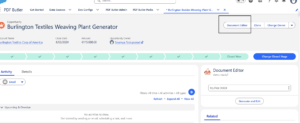
Imagine you have a Document Editor Quick Action on the Opportunity object.
When a user clicks the Quick Action:
- A Screen Flow is launched.
- The flow opens the PDFButler_DocEditorLauncher component.
- PDF Butler generates a document using the provided Doc Config.
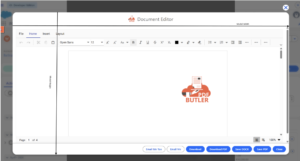
- The generated document opens directly in the Document Editor, allowing the user to make changes before saving.
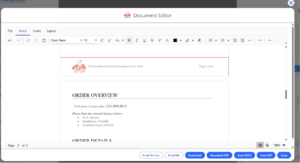
Configure the Document Editor in a Screen Flow #
- In Salesforce, create a new Screen Flow, or open an existing one.
- Add a Screen element to the flow.
- From the list of available Screen Components, drag PDFButler_DocEditorLauncher onto the screen.
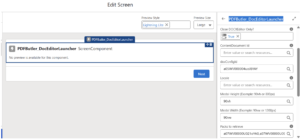
- You can see below inputs once the component is added to the screen:
“Close DOCX Editor Only?”
True: It means Only document Editor Modal will be closed
False: It means the entire Quick Action modal will be closed
Behavior Explained Using screenshots
#
When Close DOCXEditor Only? Is True
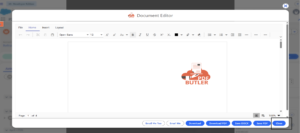
When Clicked on Close Button, user go backs to Quick action screen as below 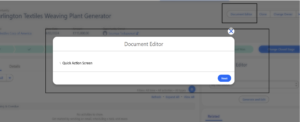
When Close DOCXEditor Only? False
When Clicked on Close button on docx editor screen, user go backs to the record page directly instead of going back to quick action screen
ContentDocument Id #
Use this property when editing an existing Salesforce File.
Provide the ContentDocument Id of the file you want to open.
Instead of generating a new document, the editor opens the specified file.
Doc Config Id #
Doc Config record Id that can be passed from flow. The document using this doc config Id will be generated in the backend and will be available for editing
Modal Height #
Defines the height of the Document Editor window.
Examples:
90vh800px
Modal Width #
Defines the width of the Document Editor window.
Examples:
90vw1200px
Packs to Retrieve #
Provide one or more Pack IDs separated by commas.
These Packs are loaded when the Document Editor opens.
Example:
PackId1,PackId2,PackId3Record Id #
The record Id from which the document editor should open.
Show Download Button? #
If True, Download Button will be added in the document editor modal window
Locale #
Refers to the language and regional formatting settings used when generating documents. It determines how values such as dates, numbers, currencies, and sometimes translated labels are displayed in the generated PDF, Word, or Excel document.
Example: German Locale (de_DE)