
Formula Form Fields allow you to perform automatic mathematical calculations directly inside a PDF Form. As users enter values into Number or Currency fields, the calculated field is updated immediately without requiring any manual intervention.
The calculated value is displayed in a read-only field and is intended for display purposes only. It is not written back to Salesforce.
NOTE: Formula Form Fields only work with Single Form Field or other Formula Form Fields.
Before You Begin #
Formula Form Fields are designed to work with PDF Forms created using Form Butler.
You can use this article on how to setup and generate Forms:
End-2-End Setup and Demo
Choosing the Correct Form Field Type #
PDF Butler provides two different Config Types for working with numeric values in PDF Forms. Although they may appear similar, they serve different purposes.
Single Form Field #
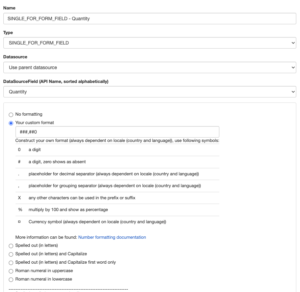
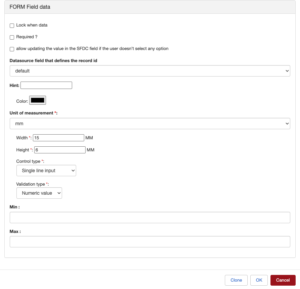
Use a Single Form Field when you want the recipient of the Form Request to enter or edit a value.
For Example: Quantity
Users can change these values while completing the form, and any Formula Form Fields that reference them are recalculated automatically.
Note: Single Form Fields support numeric values only. They do not provide currency formatting.
Formula Form Field #
Use a Formula Form Field when you want PDF Butler to calculate a value automatically.
Unlike a Single Form Field, this field is read-only
Formula Form Fields are ideal for calculated values such as:
- Unit Price
- Line Total
- Tax Amount
- Grand Total
- Discounts
- Subtotals
A Formula Form Field can be configured as either:
- Number – displays the result as a numeric value.
- Currency – formats the calculated value as a currency.
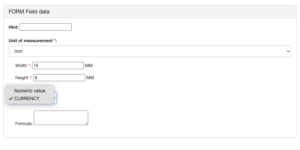
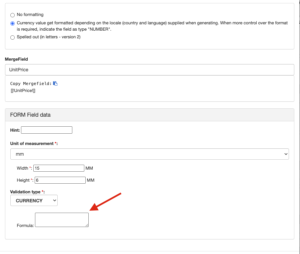
Use the Currency option whenever the calculated result represents a monetary value.
Tip: If you want to display a Salesforce Currency field (such as Unit Price) in your PDF, you can use a Formula Form Field even if no calculation is required. Adding a formula is only necessary when you want the value to be calculated dynamically.
Supported Operations #
Formula Form Fields support the following mathematical operations:
| Operation | Symbol | Example |
|---|---|---|
| Addition | + | [[!Price!]] + [[!Tax!]] |
| Subtraction | – | [[!Amount!]] - [[!Discount!]] |
| Multiplication | * | [[!Qty!]] * [[!UnitPrice!]] |
| Division | / | [[!Total!]] / [[!Items!]] |
| Parentheses | ( ) | ([[!A!]] + [[!B!]]) * [[!C!]] |
| SUM Function | SUM() | SUM([[!NetTotal!]]) |
Configuring a Formula Form Field #
Configure the Input Fields #
Create the fields that users will complete in the PDF.
For example: Qty and UnitPrice
These fields must use either:
- Number validation
- Currency validation
Add a Formula Form Field #
Create a new Config Type using:
FORMULA_FOR_FORM_FIELD
This field will display the calculated result.
Unlike other Form Fields, this field:
- is automatically populated
- cannot be edited by the user
- recalculates whenever one of the referenced fields changes
Enter the Formula #
Use merge fields to reference the input values.
Example:
[[!Qty!]] * [[!UnitPrice!]]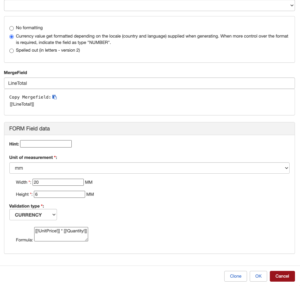
Using Multiple Operations #
You can combine several mathematical operators in a single expression.
Example:
[[!Qty!]] * [[!UnitPrice!]] / 100
Or use parentheses:
([[!Price!]] + [[!Tax!]]) * [[!Quantity!]]
The calculation is evaluated using the normal mathematical precedence rules.
Calculating Grand Totals with SUM() #
The SUM() function allows you to total values from all matching fields in the PDF.
Example:
SUM([[!NetTotal!]])
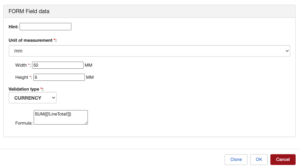
Instead of calculating only a single row, PDF Butler finds every field named NetTotal and adds their values together.
This is especially useful for:
- invoices
- quotations
- order forms
- product lists
Note: The SUM() function accepts only one merge field.
Correct:
SUM([[!NetTotal!]])
Not supported:
SUM([[!Qty!]] * [[!Price!]])Important Notes #
- Formula Form Fields are read-only and cannot be edited by end users.
- Formula values are calculated only inside the generated PDF.
- Calculated values are not written back to Salesforce.
- Formulas are recalculated every time a referenced field changes.
- SUM() formulas are evaluated after all other formulas to ensure accurate totals.
Please note the following limitations:
- Formula Form Fields only work with Single Form Field or other Formula Form Fields.
- Only fields using Number or Currency validation are processed.
- Text, Date, Checkbox, Picklist, Signature, and other field types are not supported.
- Only the following operators are supported:
- Addition (+)
- Subtraction (-)
- Multiplication (*)
- Division (/)
- Parentheses ( )
- SUM()


