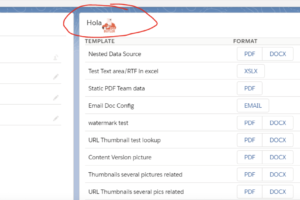
You can customize the display name of PDF Butler Lightning components by updating the corresponding Custom Label translation in Salesforce. This allows you to display different component names based on the user’s selected language.
Update a Lightning Component Name #
- In Salesforce, navigate to Setup.
- In the Quick Find box, search for Custom Labels and open it.
- Locate the custom label for the Lightning component you want to rename. For example, to rename the PDF Butler Document Selection component, search for its corresponding custom label.
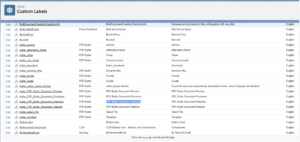
- Click the label name to open its details.
-
In the label record, locate the Translations related list.
Note: If the Translations related list is not visible, ensure that the required languages are enabled in your Salesforce organization.

- Click New in the Translations related list.
- Select the language for which you want to customize the component name.
- In the Translation Text field, enter the new display name.
- Save your changes.
Example #
Suppose you create a translation for the Spanish language and enter “Hola” as the Translation Text.
When a user has Spanish selected as their Salesforce language, the PDF Butler Document Selection Lightning component will be displayed as “Hola” instead of its default name.