
The option to add CONTENT CONTROLLERS via the ribbon (menu) in MS Word on a Mac does not exist 🙁
This does not mean it cannot be done. Learn here how you can still add CONTENT and ROW CONTROLLERS to a Word Document.
How to Add a Content Control via VBA
- Open Word for Mac.
- Press Option + F11 (or go to Developer > Visual Basic) to open the VBA Editor.
- Select Project
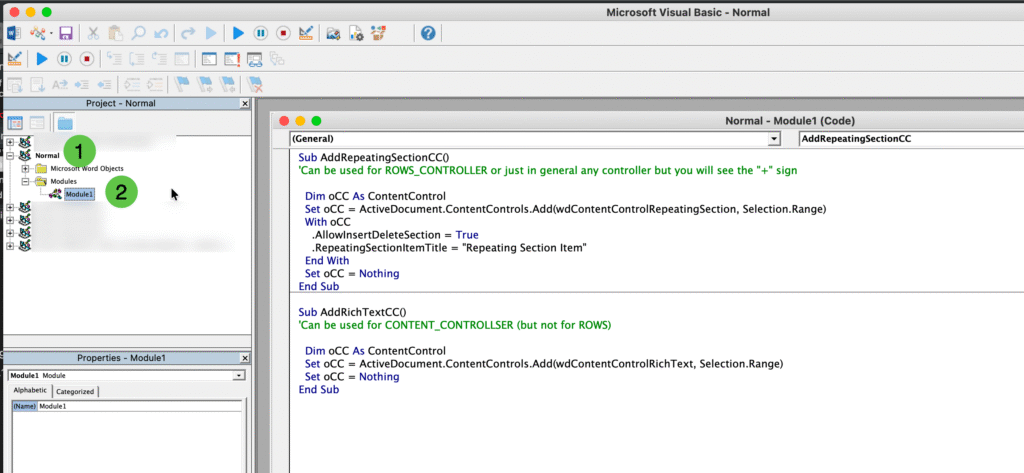
- Select Project with name “Normal”. This will allow the script to be used in all documents
- Under Module, right click and select Insert > Module.
- Paste a macro script like the example below into the module
-
Sub AddRepeatingSectionCC()
'Can be used for ROWS_CONTROLLER or just in general any controller but you will see the "+" sign

  Dim oCC As ContentControl
  Set oCC = ActiveDocument.ContentControls.Add(wdContentControlRepeatingSection, Selection.Range)
  With oCC
    .AllowInsertDeleteSection = True
    .RepeatingSectionItemTitle = "Repeating Section Item"
  End With
  Set oCC = Nothing
End Sub

Sub AddRichTextCC()
'Can be used for CONTENT_CONTROLLSER (but not for ROWS)

  Dim oCC As ContentControl
  Set oCC = ActiveDocument.ContentControls.Add(wdContentControlRichText, Selection.Range)
  Set oCC = Nothing
End Sub
-
- Save the project
There are plenty of sources online, web and YouTube that explain in more detail how to manage VBA Script.
In the script, there are 1 functions:
- AddRepeatingSectionCC: Can be used for ROWS_CONTROLLER or just in general any controller but you will see the “+” sign
- AddRichTextCC: Can be used for CONTENT_CONTROLLER (but not for ROWS)
How to use these scripts is explained in this video: Add CONTENT and ROW CONTROLLERS to a Word document on a Mac
- Select the text or rows that you want to group in a ROWS or CONTENT CONTROLLER
- In the Microsoft Visual Basic Editor, click inside the function, AddRepeatingSectionCC or AddRichTextCC, that you want to run.
- Click the Run button in the header of the Microsoft Visual Basic Editor
- Your ROWS or CONTENT CONTROLLER is now added and ready to use


