
Want to replicate a block of information. You can do this with a TABLE but also with a CONTENT_CONTROLLER.
1. Enable Developer Tab in MS Word #
Before creating repeating sections, enable the Developer tools in Microsoft Word:
Show Developer tab
- Open your Word document.
- Click File → Options.
- Select Customize Ribbon.
- Enable the Developer checkbox.
- Click OK.
You will now see the Developer tab in the Word ribbon.
2. Create a Repeating Section in Word #
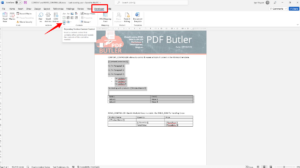
- Go to the Developer tab.
- Locate Repeating Section Content Control.

- Select the portion of the document you want to repeat (e.g., a table row or section).
- Click Repeating Section Content Control.
- Save the document.
3. Configure in Salesforce (PDF Butler) #
Create Required Records #
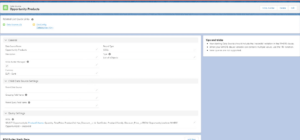
- In Salesforce, create a Data Source (e.g., Opportunity Products).

- Create a Doc Config.

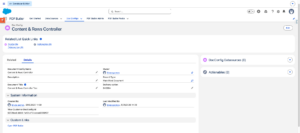
Configure in PDF Butler Editor #
- Open the PDF Butler Editor from the Doc Config.
- Add the Data Source you created.
- Upload your Word document in the Doc Config Documents section.
Add Content Controller #
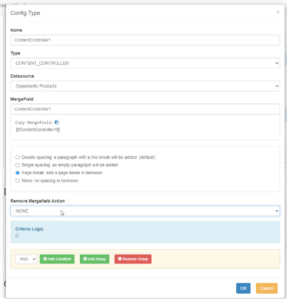
- Click Add Config Type.
- Select CONTENT_CONTROLLER.
- Link it to the appropriate Data Source (e.g., Opportunity Products).

Configure Child Fields #
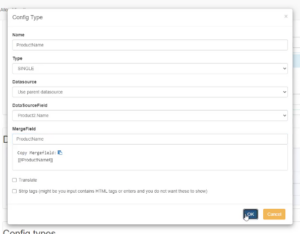
- Create a Child Config Type.
- Select Single.
- Map the fields from the data source to the merge fields in your document.

4. Validate the Configuration #
- Open a record (e.g., Opportunity with Products).
- Generate the document.
- Verify that the repeating section:
- Displays multiple records correctly
- Repeats the selected section for each item


