This release introduces several enhancements to the PDF Butler Document Editor, providing greater flexibility when editing documents directly from Salesforce and additional customization options for the Lightning component.
Package Version: v1.21
New Features #
Edit Existing DOCX Files #
The Document Editor can now be used to edit existing Microsoft Word (.docx) files that are already stored in Salesforce.
This feature allows users to open an existing document in the Document Editor instead of always generating a new document from a Doc Config.
How to Enable #
- Edit the page containing the PDF Butler Document Editor component.
- Enable the Edit Existing DOCX Files checkbox.
- Save and activate the page.
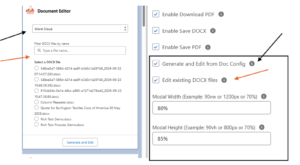
Once enabled, users can open and edit existing DOCX files directly from Salesforce.
Note: The Generate and Edit from Doc Config setting is independent from this option. Use it to control whether users can generate a new document from a Doc Config before opening it in the Document Editor.
Order the Doc Config List #
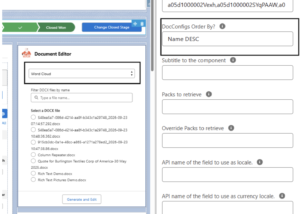
A new DocConfigs Order By property has been added to the Document Editor Lightning component.
This property allows administrators to define how the available Doc Configs are sorted in the Document Editor.
Example, If you configure: Name ASC
The Doc Config picker will display all available Doc Configs sorted alphabetically by Name in ascending order.
You can use any supported Salesforce ordering expression based on Doc Config fields.
Customize the Document Editor Size #
Two new component properties allow administrators to control the size of the Document Editor window.
Modal Width #
Use Modal Width to define the width of the Document Editor.
Examples:
90vw1200px
Modal Height #
Use Modal Height to define the height of the Document Editor.
Examples:
90vh800px
Adjusting these values allows you to optimize the Document Editor for different screen sizes and user experiences.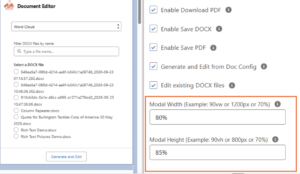
Translate the Document Editor #
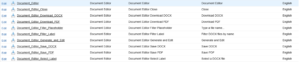
The Document Editor now supports additional translations through Salesforce Custom Labels.
All text, labels, and buttons displayed in the Document Editor can be translated without modifying the package.
Configure Translations #
- Go to Setup.
- Search for Custom Labels.
- Open Custom Labels.
- Filter by the Document Editor category.
- Create or edit translations using Local Translations / Overrides for the desired language.
- Save your changes.
Users will automatically see the translated labels based on their Salesforce language settings.
Note: If the Local Translations / Overrides related list is not available, ensure that the required languages have been enabled in your Salesforce organization.